> ## Documentation Index
> Fetch the complete documentation index at: https://docs.juneops.com/llms.txt
> Use this file to discover all available pages before exploring further.
# Asset Upload
> Bulk upload your hardware inventory into June using CSV files
The asset upload feature allows you to import your hardware inventory in bulk. You can include information about:
* **Assets** — Serial numbers, categories, and conditions
* **Products** — Device models and manufacturers
* **Employees** — Who the asset is assigned to
* **Departments** — Team or department ownership
* **Locations** — Where unassigned assets are stored
* **Purchase Details** — Cost, vendor, and purchase date information
## CSV Template
Download and use the following column headers for your CSV file:
```csv theme={null}
Serial Number,Asset Product Name,Manufacturer,Model,Asset Category,Asset Condition,Employee Email,Employee First Name,Employee Last Name,Position,Department Name,Location Name,Asset Cost,Vendor,Asset Purchase Date,PO Number
```
### Example Data
```csv theme={null}
Serial Number,Asset Product Name,Manufacturer,Model,Asset Category,Asset Condition,Employee Email,Employee First Name,Employee Last Name,Position,Department Name,Location Name,Asset Cost,Vendor,Asset Purchase Date,PO Number
ABC1234567890,Apple MacBook Pro 14-inch M3,Apple,MacBook Pro 14,computer,good,john.doe@example.com,John,Doe,Software Engineer,Engineering,,2499.00,Apple Store,2024-01-15,PO-2024-001
DEF9876543210,Dell XPS 15,Dell,XPS 15 9530,computer,new,jane.smith@example.com,Jane,Smith,Product Manager,Product,,1899.00,Dell Direct,2024-02-20,PO-2024-002
GHI5555555555,ThinkPad X1 Carbon,Lenovo,X1 Carbon Gen 11,computer,new,,,,,IT Storage,1649.00,CDW,2024-01-05,PO-2024-003
```
### Supported File Types
| Category | Formats |
| ---------------- | -------------- |
| **Spreadsheets** | XLS, XLSX, CSV |
Maximum file size is 10MB per document. For larger files, consider compressing or splitting them before upload.
## Bulk Import Assets
Navigate to **Settings** → **Import Data**.
Click on the **New Import** button and select **Assets Import**.
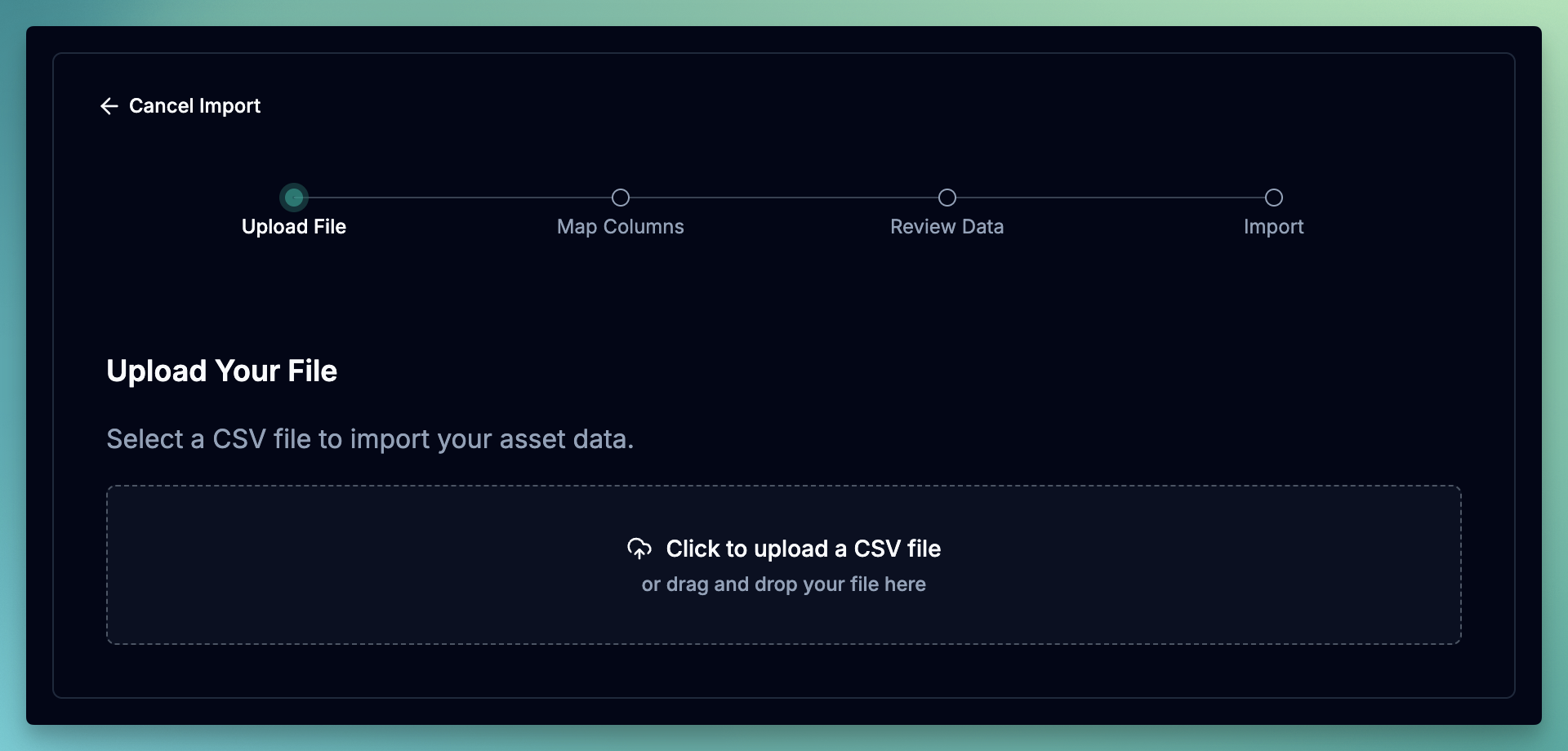
Click **Upload Document** and select the file from your computer. You can also drag and drop files directly into the upload area.
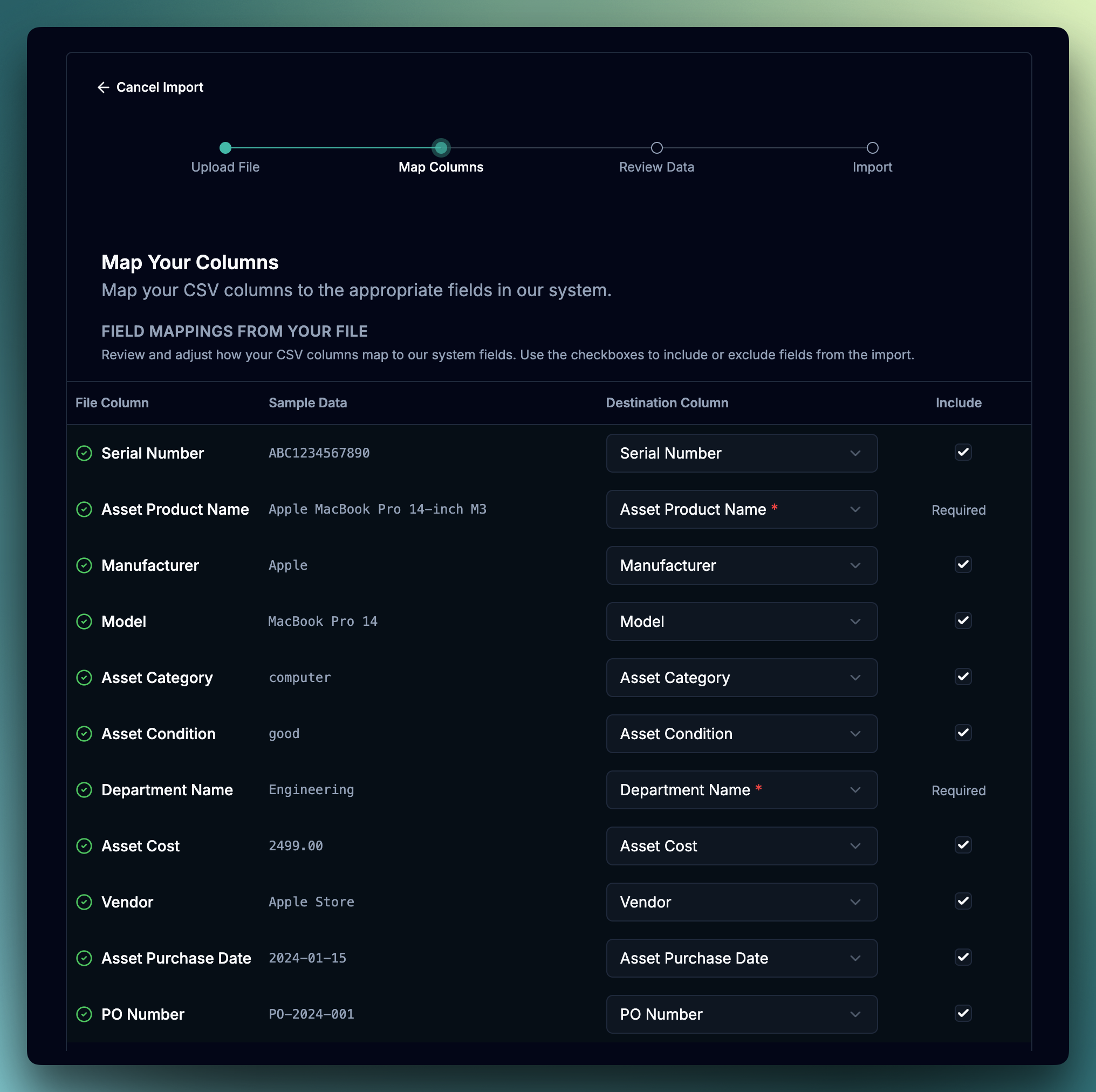
 June will try to map headers to the the fields automatically. You can also manually map the columns by selecting fields from the dropdown. Once done, click **Review Data**.
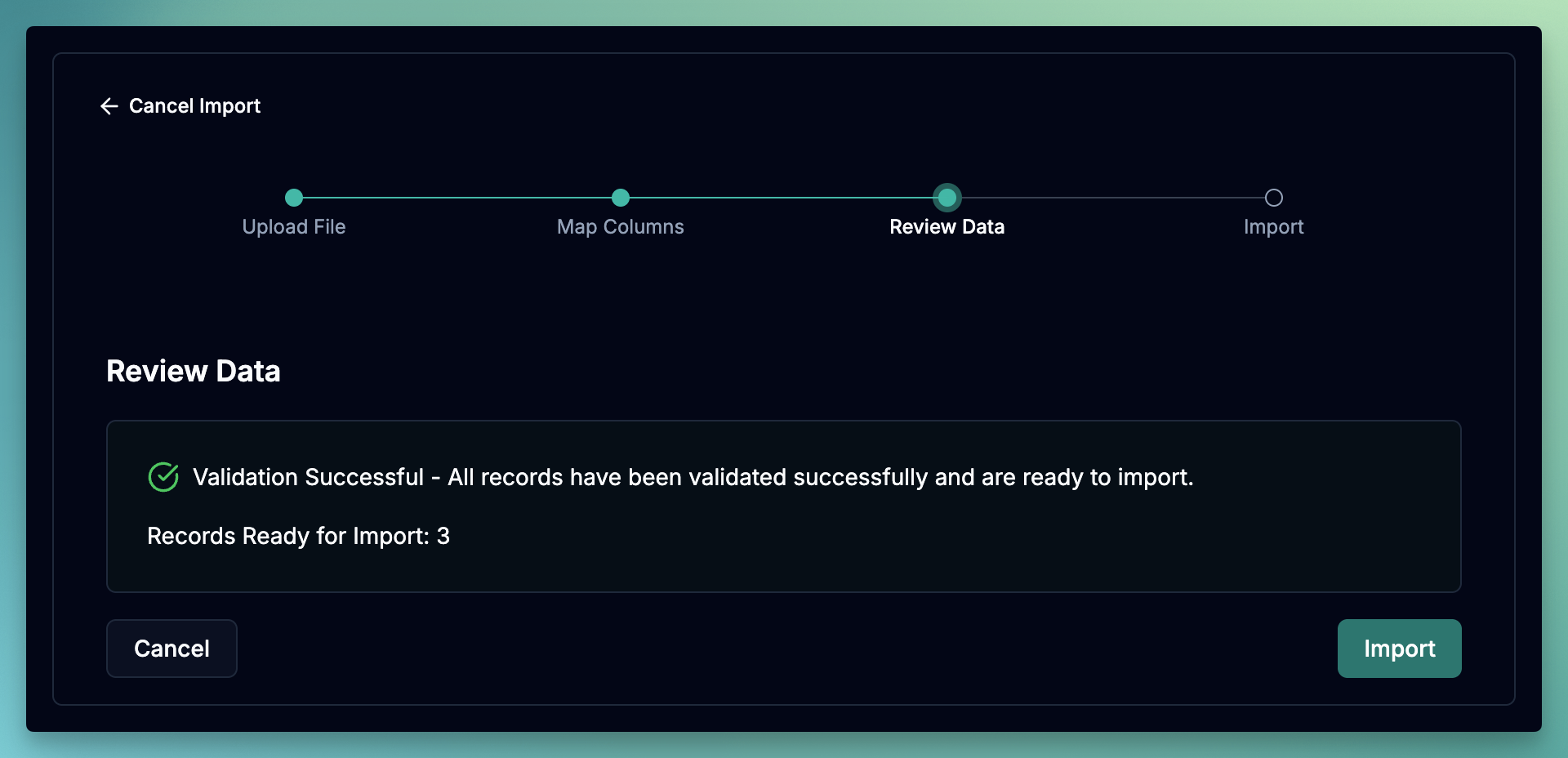
 June will validate the data and show any errors or warnings. Click on **Import** to start the import process.
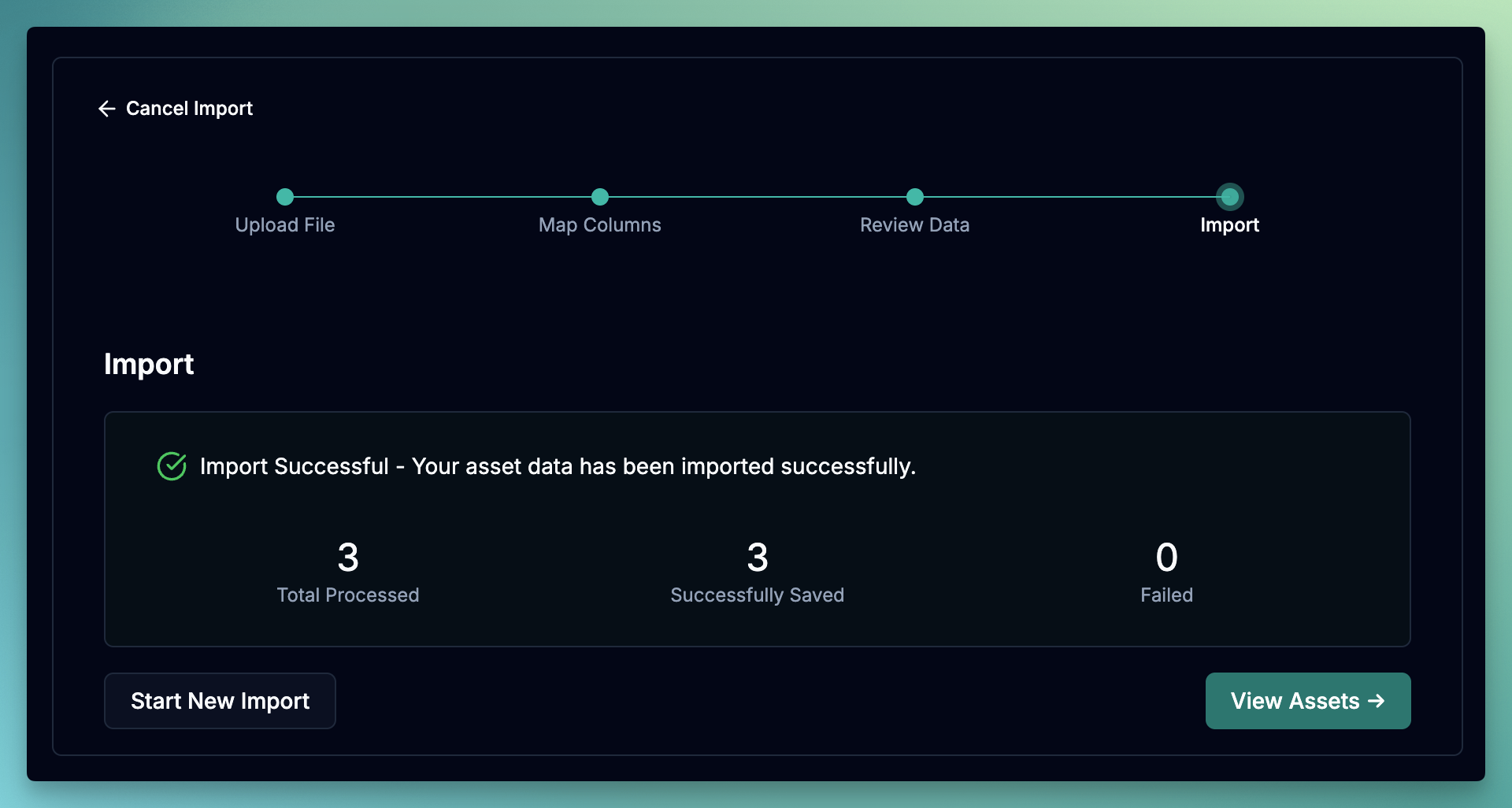
 June will show you the result of the import and you can click on **View Assets** to go to the assets page.
 ## Field Reference
### Asset Fields
| Column | Required | Description |
| ------------------- | -------- | ---------------------------------------------------------------------------------- |
| **Serial Number** | Yes | Unique identifier for the asset. Used to match existing assets or create new ones. |
| **Asset Category** | No | Type of device. See valid values below. |
| **Asset Condition** | No | Physical condition of the asset. Defaults to `unknown` if not provided. |
**Asset Category Values:**
| Value | Description |
| --------------- | -------------------- |
| `computer` | Laptops and desktops |
| `mobile_device` | Phones |
| `tablet` | Tablets and iPads |
| `apple_tv` | Apple TV devices |
| `other` | Any other hardware |
**Asset Condition Values:**
| Value | Description |
| -------------- | -------------------------------- |
| `new` | Brand new, unused |
| `good` | Working condition, normal wear |
| `needs_repair` | Requires maintenance or repair |
| `broken` | Non-functional |
| `unknown` | Condition not assessed (default) |
### Product Fields
| Column | Required | Description |
| ---------------------- | -------- | ------------------------------------------------------------------- |
| **Asset Product Name** | Yes | Name of the product or model (e.g., "Apple MacBook Pro 14-inch M3") |
| **Manufacturer** | No | Brand or manufacturer (e.g., "Apple", "Dell", "Lenovo") |
| **Model** | No | Model number or name (e.g., "MacBook Pro 14", "XPS 15") |
### Employee Fields
Use these fields to assign assets to employees during import.
| Column | Required | Description |
| ----------------------- | -------- | ---------------------------------------------------- |
| **Employee Email** | No | Email address of the employee to assign the asset to |
| **Employee First Name** | No | Employee's first name |
| **Employee Last Name** | No | Employee's last name |
| **Position** | No | Job title or role |
If an employee with the provided email doesn't exist in June, they will be created automatically with the information provided.
### Organization Fields
| Column | Required | Description |
| ------------------- | -------- | ------------------------------------------- |
| **Department Name** | No | Department the asset or employee belongs to |
| **Location Name** | No | Storage location for unassigned assets |
Location names must exactly match existing locations in June. Create locations before importing if needed.
### Purchase Details
| Column | Required | Description |
| ----------------------- | -------- | --------------------------------------- |
| **Asset Cost** | No | Purchase price (e.g., `2499.00`) |
| **Vendor** | No | Where the asset was purchased from |
| **Asset Purchase Date** | No | Date of purchase in `YYYY-MM-DD` format |
| **PO Number** | No | Purchase order number for tracking |
## How Asset Status is Determined
Asset status is automatically set based on assignment information:
| Scenario | Resulting Status |
| --------------------------------------- | --------------------------------------------------------- |
| Employee Email is provided | **Deployed** — Asset is assigned to the employee |
| Location Name is provided (no employee) | **Available** — Asset is in storage, ready for deployment |
| Neither provided | Status must be set manually after import |
## Minimum Required Fields
For a basic import, you only need two columns:
```csv theme={null}
Serial Number,Asset Product Name
ABC123,MacBook Pro 14-inch
DEF456,Dell XPS 15
```
All other fields are optional and can be added or updated later.
## Tips for Success
### Before You Upload
Location names must match existing locations in June exactly. Create any new locations before importing.
Ensure all employee emails are valid and properly formatted.
Product names should be consistent across your CSV for proper grouping and reporting.
Each serial number should appear only once in your CSV file.
### Formatting Guidelines
* Save your file as **CSV (Comma Separated Values)**
* Use **UTF-8 encoding** to support special characters
* Dates should be in **YYYY-MM-DD** format (e.g., `2024-01-15`)
* Currency values should be **numbers only** without symbols (e.g., `2499.00` not `$2,499.00`)
* Leave cells **empty** for optional fields you don't have data for
## Troubleshooting
The location name in your CSV doesn't match any existing location in June.
**Solution:** Create the location in June before importing, or remove the location from your CSV.
The same serial number appears multiple times in your file.
**Solution:** Remove duplicate rows from your CSV, keeping only one entry per serial number.
An employee email address is not in a valid format.
**Solution:** Check for typos, extra spaces, or missing characters in email addresses.
Purchase dates are not in the expected format.
**Solution:** Use `YYYY-MM-DD` format for all dates (e.g., `2024-01-15`).
## Need Help?
If you encounter any issues during the upload process, please contact support with:
* Your CSV file (with any sensitive data removed)
* The specific error message you received
* Screenshots of the upload screen if applicable
Reach out to our team for assistance with asset uploads
## Field Reference
### Asset Fields
| Column | Required | Description |
| ------------------- | -------- | ---------------------------------------------------------------------------------- |
| **Serial Number** | Yes | Unique identifier for the asset. Used to match existing assets or create new ones. |
| **Asset Category** | No | Type of device. See valid values below. |
| **Asset Condition** | No | Physical condition of the asset. Defaults to `unknown` if not provided. |
**Asset Category Values:**
| Value | Description |
| --------------- | -------------------- |
| `computer` | Laptops and desktops |
| `mobile_device` | Phones |
| `tablet` | Tablets and iPads |
| `apple_tv` | Apple TV devices |
| `other` | Any other hardware |
**Asset Condition Values:**
| Value | Description |
| -------------- | -------------------------------- |
| `new` | Brand new, unused |
| `good` | Working condition, normal wear |
| `needs_repair` | Requires maintenance or repair |
| `broken` | Non-functional |
| `unknown` | Condition not assessed (default) |
### Product Fields
| Column | Required | Description |
| ---------------------- | -------- | ------------------------------------------------------------------- |
| **Asset Product Name** | Yes | Name of the product or model (e.g., "Apple MacBook Pro 14-inch M3") |
| **Manufacturer** | No | Brand or manufacturer (e.g., "Apple", "Dell", "Lenovo") |
| **Model** | No | Model number or name (e.g., "MacBook Pro 14", "XPS 15") |
### Employee Fields
Use these fields to assign assets to employees during import.
| Column | Required | Description |
| ----------------------- | -------- | ---------------------------------------------------- |
| **Employee Email** | No | Email address of the employee to assign the asset to |
| **Employee First Name** | No | Employee's first name |
| **Employee Last Name** | No | Employee's last name |
| **Position** | No | Job title or role |
If an employee with the provided email doesn't exist in June, they will be created automatically with the information provided.
### Organization Fields
| Column | Required | Description |
| ------------------- | -------- | ------------------------------------------- |
| **Department Name** | No | Department the asset or employee belongs to |
| **Location Name** | No | Storage location for unassigned assets |
Location names must exactly match existing locations in June. Create locations before importing if needed.
### Purchase Details
| Column | Required | Description |
| ----------------------- | -------- | --------------------------------------- |
| **Asset Cost** | No | Purchase price (e.g., `2499.00`) |
| **Vendor** | No | Where the asset was purchased from |
| **Asset Purchase Date** | No | Date of purchase in `YYYY-MM-DD` format |
| **PO Number** | No | Purchase order number for tracking |
## How Asset Status is Determined
Asset status is automatically set based on assignment information:
| Scenario | Resulting Status |
| --------------------------------------- | --------------------------------------------------------- |
| Employee Email is provided | **Deployed** — Asset is assigned to the employee |
| Location Name is provided (no employee) | **Available** — Asset is in storage, ready for deployment |
| Neither provided | Status must be set manually after import |
## Minimum Required Fields
For a basic import, you only need two columns:
```csv theme={null}
Serial Number,Asset Product Name
ABC123,MacBook Pro 14-inch
DEF456,Dell XPS 15
```
All other fields are optional and can be added or updated later.
## Tips for Success
### Before You Upload
Location names must match existing locations in June exactly. Create any new locations before importing.
Ensure all employee emails are valid and properly formatted.
Product names should be consistent across your CSV for proper grouping and reporting.
Each serial number should appear only once in your CSV file.
### Formatting Guidelines
* Save your file as **CSV (Comma Separated Values)**
* Use **UTF-8 encoding** to support special characters
* Dates should be in **YYYY-MM-DD** format (e.g., `2024-01-15`)
* Currency values should be **numbers only** without symbols (e.g., `2499.00` not `$2,499.00`)
* Leave cells **empty** for optional fields you don't have data for
## Troubleshooting
The location name in your CSV doesn't match any existing location in June.
**Solution:** Create the location in June before importing, or remove the location from your CSV.
The same serial number appears multiple times in your file.
**Solution:** Remove duplicate rows from your CSV, keeping only one entry per serial number.
An employee email address is not in a valid format.
**Solution:** Check for typos, extra spaces, or missing characters in email addresses.
Purchase dates are not in the expected format.
**Solution:** Use `YYYY-MM-DD` format for all dates (e.g., `2024-01-15`).
## Need Help?
If you encounter any issues during the upload process, please contact support with:
* Your CSV file (with any sensitive data removed)
* The specific error message you received
* Screenshots of the upload screen if applicable
Reach out to our team for assistance with asset uploads