> ## Documentation Index
> Fetch the complete documentation index at: https://docs.juneops.com/llms.txt
> Use this file to discover all available pages before exploring further.
# Apple Business Manager Integration
> Complete integration guide for connecting Apple Business Manager with June for device and purchase data synchronization
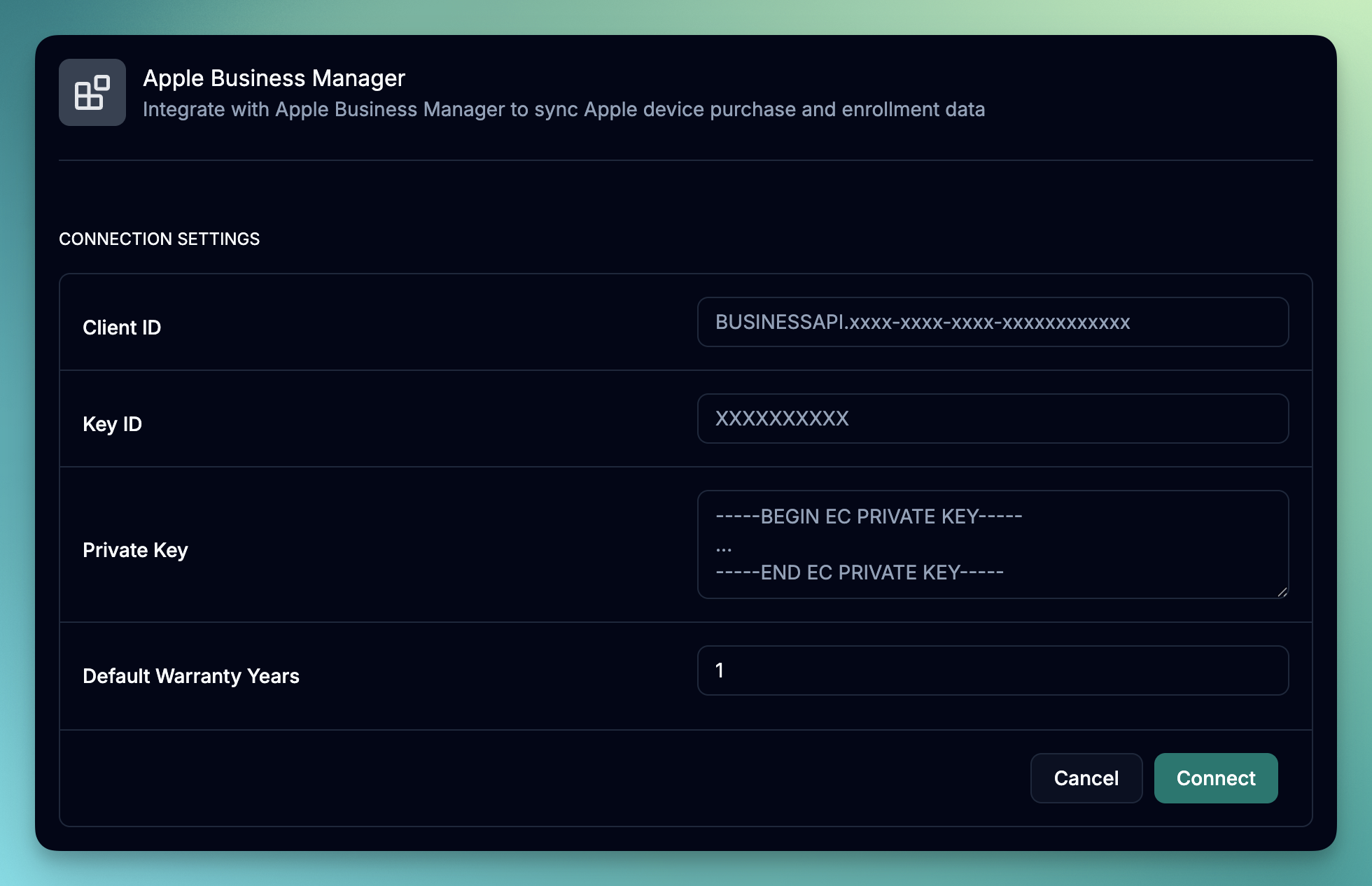 Connect your Apple Business Manager account with June to automatically sync Apple device information, including purchase data and device enrollment details, directly from Apple's Business Manager portal.
## What you'll accomplish
* Set up API integration in Apple Business Manager
* Configure JWT-based authentication with June
* Sync Apple device inventory and purchase data
* Understand data mapping and synchronization
* Set up test mode for development environments
## Prerequisites
Before starting the integration, ensure you have:
* [Apple Business Manager](https://business.apple.com) account with administrator access
* API access enabled in Apple Business Manager
* Apple devices purchased through authorized channels and assigned to your ABM organization (see [Apple Business Manager](https://business.apple.com) for more information)
## Key Features
* **Device Synchronization**: Automatically sync all Apple devices from your ABM account especially devices that are not enrolled in your MDM.
* **Purchase Data**: Import purchase dates, vendor details, and calculate warranty expiration dates.
## Setup Process
### Step 1: Create API Integration in Apple Business Manager
1. Log into your Apple Business Manager account at [business.apple.com](https://business.apple.com)
2. Navigate to **Preferences**
Connect your Apple Business Manager account with June to automatically sync Apple device information, including purchase data and device enrollment details, directly from Apple's Business Manager portal.
## What you'll accomplish
* Set up API integration in Apple Business Manager
* Configure JWT-based authentication with June
* Sync Apple device inventory and purchase data
* Understand data mapping and synchronization
* Set up test mode for development environments
## Prerequisites
Before starting the integration, ensure you have:
* [Apple Business Manager](https://business.apple.com) account with administrator access
* API access enabled in Apple Business Manager
* Apple devices purchased through authorized channels and assigned to your ABM organization (see [Apple Business Manager](https://business.apple.com) for more information)
## Key Features
* **Device Synchronization**: Automatically sync all Apple devices from your ABM account especially devices that are not enrolled in your MDM.
* **Purchase Data**: Import purchase dates, vendor details, and calculate warranty expiration dates.
## Setup Process
### Step 1: Create API Integration in Apple Business Manager
1. Log into your Apple Business Manager account at [business.apple.com](https://business.apple.com)
2. Navigate to **Preferences**
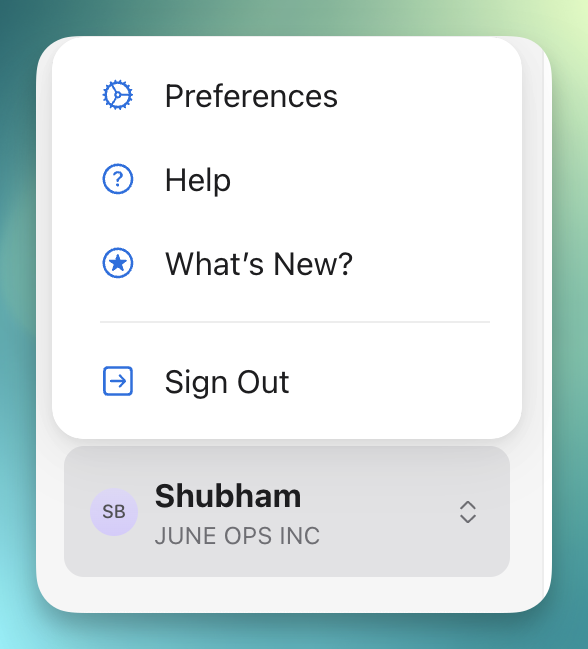 3. Look for the **API** section.
1. Click **+** to generate a new API integration
2. Enter **June Integration** as the API account Label.
3. Look for the **API** section.
1. Click **+** to generate a new API integration
2. Enter **June Integration** as the API account Label.
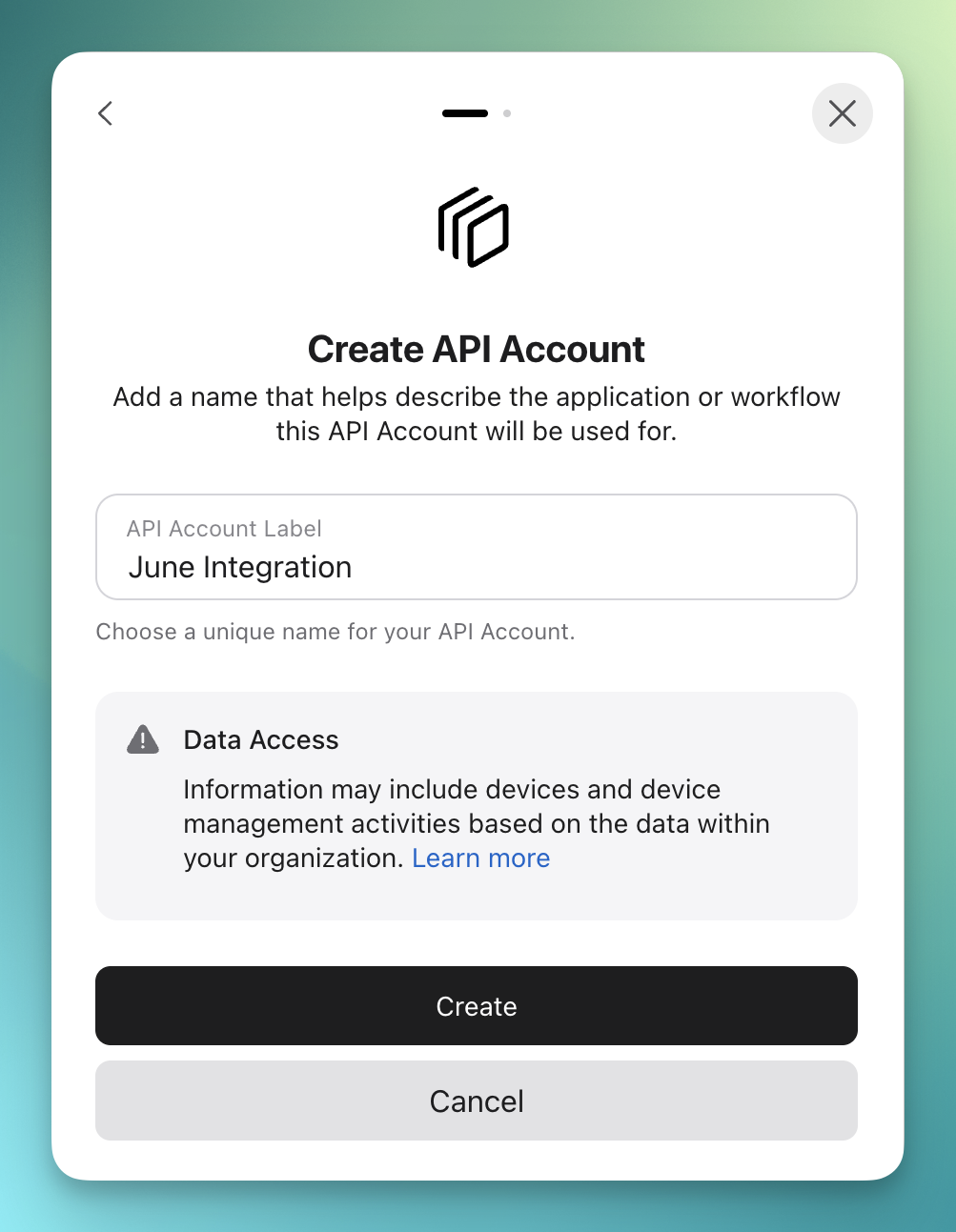 3. Click **Create** to generate a new API key.
4. Click **Generate Private Key** to generate a new private key.
3. Click **Create** to generate a new API key.
4. Click **Generate Private Key** to generate a new private key.
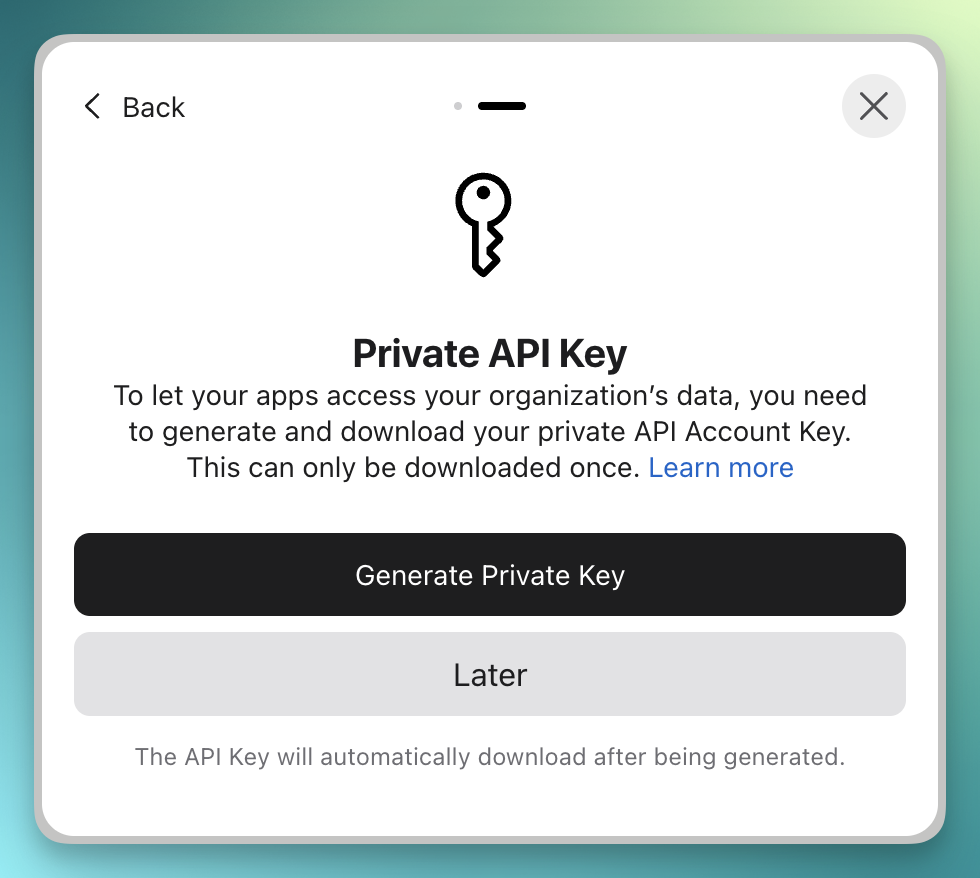 5. The private key will be downloaded to your computer and your integration will be created.
6. Click **Manage** to manage the API integration.
7. You should be able to see your Client ID and Key ID.
5. The private key will be downloaded to your computer and your integration will be created.
6. Click **Manage** to manage the API integration.
7. You should be able to see your Client ID and Key ID.
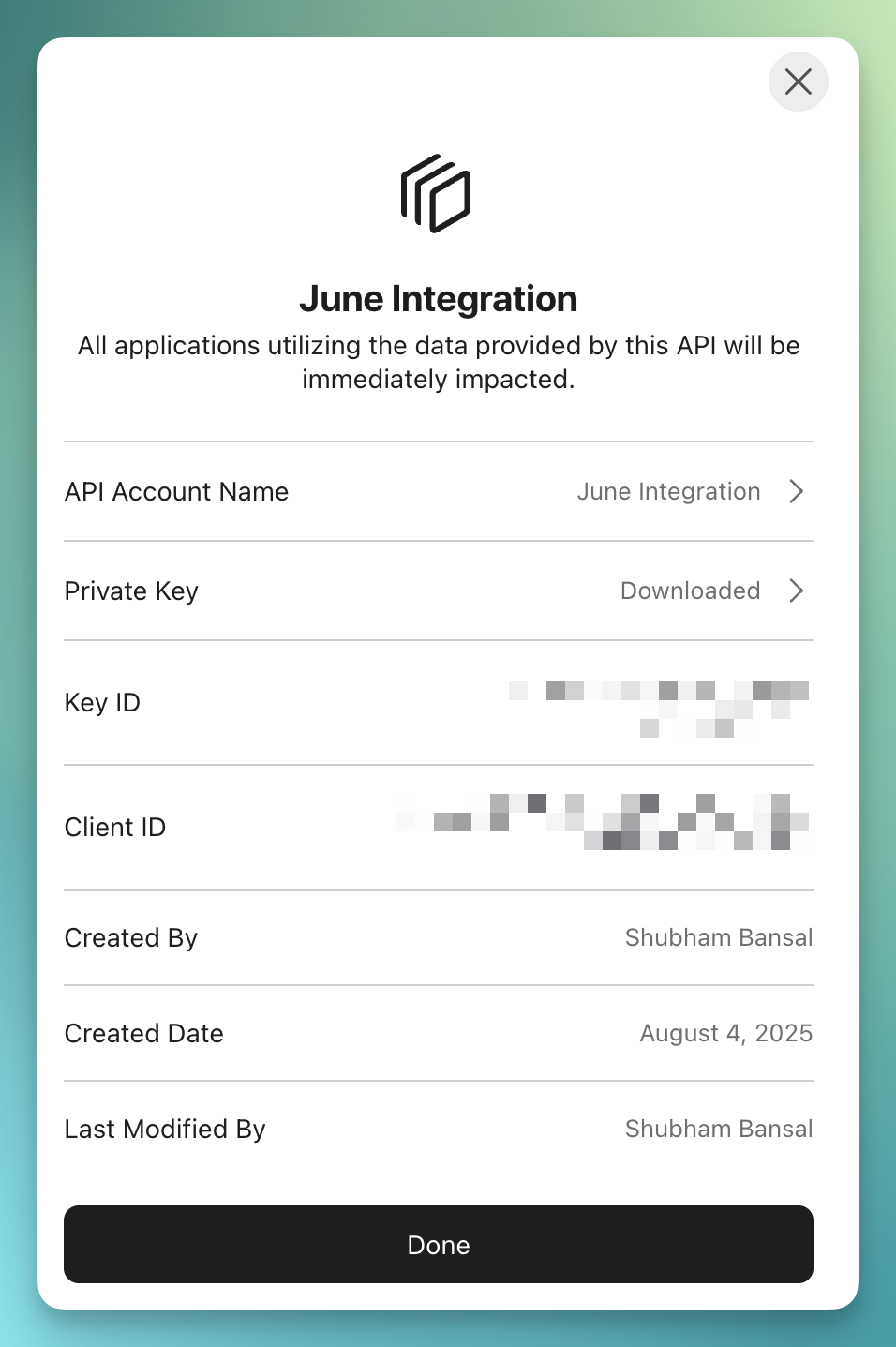 The API key will be used for JWT-based authentication between June and Apple Business Manager.
1. Open the downloaded private key file (`.p8` format) with a text editor.
2. Note the **Key ID** (10 characters) and **Client ID**
3. Save these credentials securely - you'll need them for June configuration.
Private keys cannot be re-downloaded. Store them securely and never share them outside your organization.
### Step 2: Configure Integration in June
1. Log into June
2. Navigate to **Integrations > Add Integration**
3. Select **Apple Business Manager** from the MDM integrations
Fill in the required authentication fields:
* **Client ID**: Your ABM Client ID
* **Key ID**: The Key ID associated with your private key
* **Private Key**: Paste the contents of your `.p8` private key file
* **Default Warranty Years**: Default warranty years applicable to your devices. This will be used to calculate the warranty expiration date for devices based on the purchase date from Apple Business Manager.
Ensure the private key is pasted in the correct PEM format, including the header and footer lines.
1. Click **Connect** to verify your API credentials
2. June will validate the connection and retrieve sample device data
3. If successful, an integration sync will be scheduled automatically.
4. You can look at the sync events at the bottom of the page as well.
A successful test will show device count and connection status from your ABM account.
### Step 3: Initial Data Sync
1. After successful connection setup, integration sync will be scheduled automatically.
2. June will begin importing all device data from your ABM account
3. Monitor the sync progress through the integration status page
4. Initial sync time depends on the number of devices in your ABM account
5. You can also run a manual sync at any time by clicking the **Sync Now** button.
Once the sync completes:
* June will create new assets for any unique serial numbers that are not already in your asset inventory.
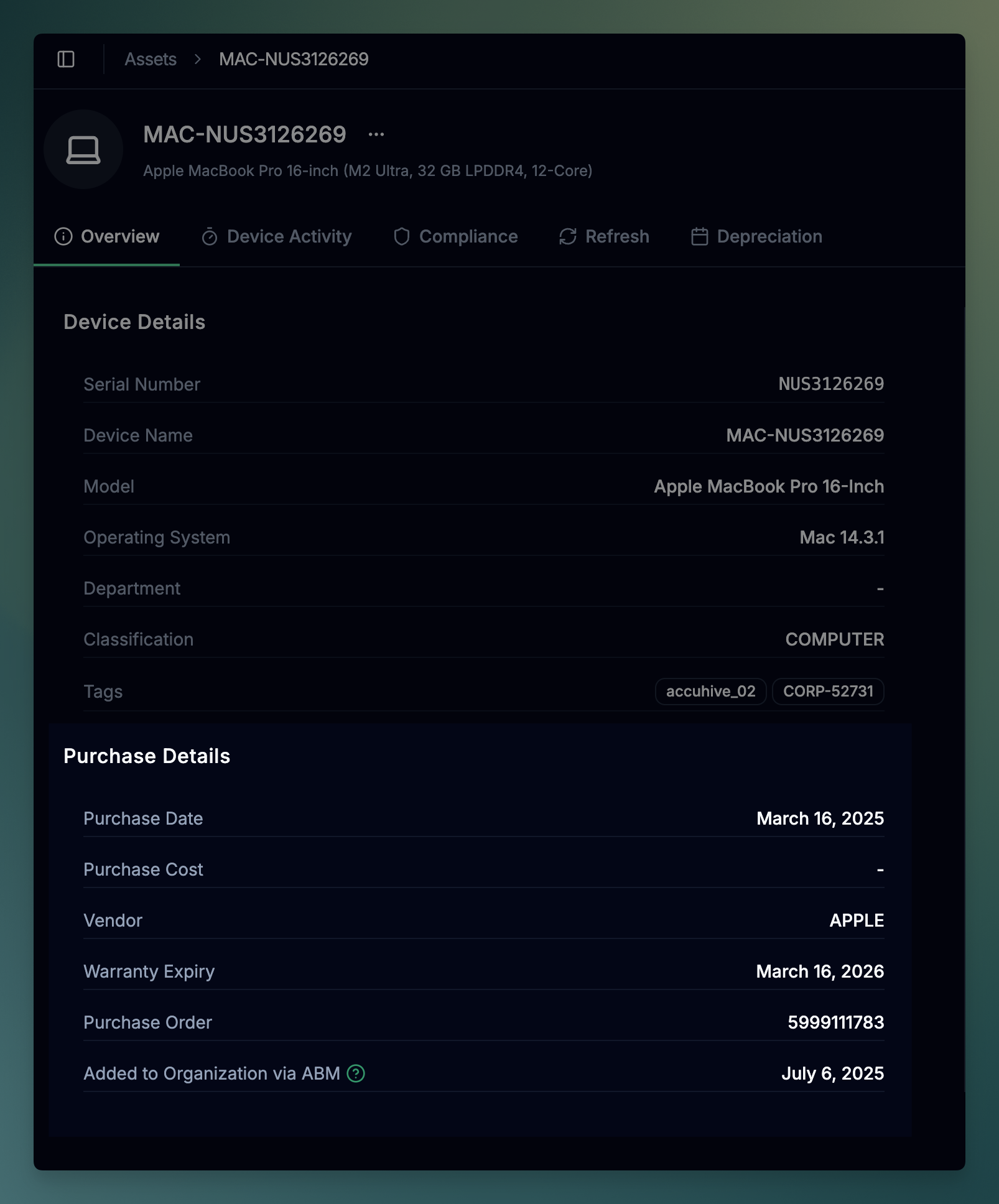
* You can see the purchase details by clicking on an asset and looking at the "Purchase Details" in the **Overview** tab.
The API key will be used for JWT-based authentication between June and Apple Business Manager.
1. Open the downloaded private key file (`.p8` format) with a text editor.
2. Note the **Key ID** (10 characters) and **Client ID**
3. Save these credentials securely - you'll need them for June configuration.
Private keys cannot be re-downloaded. Store them securely and never share them outside your organization.
### Step 2: Configure Integration in June
1. Log into June
2. Navigate to **Integrations > Add Integration**
3. Select **Apple Business Manager** from the MDM integrations
Fill in the required authentication fields:
* **Client ID**: Your ABM Client ID
* **Key ID**: The Key ID associated with your private key
* **Private Key**: Paste the contents of your `.p8` private key file
* **Default Warranty Years**: Default warranty years applicable to your devices. This will be used to calculate the warranty expiration date for devices based on the purchase date from Apple Business Manager.
Ensure the private key is pasted in the correct PEM format, including the header and footer lines.
1. Click **Connect** to verify your API credentials
2. June will validate the connection and retrieve sample device data
3. If successful, an integration sync will be scheduled automatically.
4. You can look at the sync events at the bottom of the page as well.
A successful test will show device count and connection status from your ABM account.
### Step 3: Initial Data Sync
1. After successful connection setup, integration sync will be scheduled automatically.
2. June will begin importing all device data from your ABM account
3. Monitor the sync progress through the integration status page
4. Initial sync time depends on the number of devices in your ABM account
5. You can also run a manual sync at any time by clicking the **Sync Now** button.
Once the sync completes:
* June will create new assets for any unique serial numbers that are not already in your asset inventory.
* You can see the purchase details by clicking on an asset and looking at the "Purchase Details" in the **Overview** tab.
 ## API Authentication
ABM integration uses JWT-based authentication with ECDSA P-256 certificates for secure API access:
* **Algorithm**: ES256 (ECDSA with SHA-256)
* **Key Format**: PKCS#8 PEM format (.p8 files)
* **Automatic Renewal**: Tokens are automatically renewed before expiration
* Private keys and tokens are encrypted at rest in June's database
* All API communication uses TLS encryption
* Keys can be rotated in ABM portal without downtime.
* Only read only access to the ABM API is granted to June.
## Data Synchronization
### Device Data Mapping
| ABM Field | June Field | Description |
| -------------------- | ----------------------- | ---------------------------------------------------- |
| `serialNumber` | `serial_number` | Device serial number |
| `deviceModel` | `model` | Device model (e.g., "MacBook Pro 13-inch") |
| `productType` | `sku` | Device SKU (e.g., "iMac16,2") |
| `color` | `color` | Device color |
| `orderDateTime` | `purchase_date` | Date device was purchased |
| `addedToOrgDateTime` | `abm_added_to_org_date` | Date device was added to your organization |
| `os` | `operating_system` | Operating system (macOS, iOS, iPadOS, tvOS, watchOS) |
| `purchaseSourceType` | `vendor` | Vendor name |
### Sync Behavior
* **Complete Import**: All devices from ABM are imported on first sync
* **Data Processing**: Purchase data, warranty info, and device specs are mapped
* **Duration**: Depends on device count, typically 5-15 minutes for most organizations
* **Regular Sync**: Updates existing devices with latest data from ABM
* **New Devices**: Automatically imports newly purchased devices
* **Data Changes**: Updates purchase dates, warranty dates, and vendor details.
* **Unique Identifier**: Uses serial number as primary key
* **Provider Identity**: Creates links between June assets and ABM devices
* **Conflict Resolution**: ABM data takes precedence for purchase information
* **Failed Syncs**: Retried with exponential backoff
* **Rate Limiting**: Built-in handling for ABM API rate limits
* **Logging**: Detailed sync logs for troubleshooting
## Troubleshooting
### Authentication Issues
**Symptoms**: "Authentication failed: Invalid credentials" errors
**Solutions**:
* Verify Client ID, Key ID, and Private Key are correct in June settings
* Ensure private key is in proper PEM format with headers and footers
* Check that the key hasn't been revoked or disabled in ABM portal
* Confirm the API key has appropriate permissions for device data access.
**Symptoms**: "Failed to generate authentication token" errors
**Solutions**:
* Verify private key format (should start with `-----BEGIN EC PRIVATE KEY-----`)
* Ensure no extra whitespace or formatting issues in the key
* Check that Key ID matches the key in Apple Business Manager
* Regenerate the API key if the current one is corrupted
**Symptoms**: Connection timeouts or "Unable to reach server" errors
**Solutions**:
* Check network connectivity to Apple's Business Manager APIs
* Verify firewall rules allow connections to \*.apple.com domains
* Ensure corporate proxy settings don't interfere with API communication
* Test connectivity during different times to rule out temporary issues
### Sync Issues
**Symptoms**: "Failed to fetch devices" or sync errors
**Solutions**:
* Check network connectivity to Apple's Business Manager APIs
* Verify ABM account has devices assigned to your organization
* Check for rate limiting - ABM has API request limits
* Review sync logs in June for specific error details
* Try running a manual sync to isolate the issue
**Symptoms**: Devices sync but with incomplete purchase data
**Solutions**:
* Verify purchase information is complete in Apple Business Manager
* Check that warranty and pricing data is available from the vendor
* Update device information in ABM portal if editable
* Contact your Apple reseller about missing purchase data
## Best Practices
### Security
* **Key Management**: Regularly rotate API keys and store them in secure, encrypted storage
* **Access Control**: Limit ABM administrator access to authorized personnel only
* **Audit Logging**: Monitor API key usage and access patterns
* **Regular Reviews**: Periodically audit device assignments and API permissions
## Support
Need help with your Apple Business Manager integration?
* **Integration Logs**: Check the integration logs in June's admin panel for detailed error information
* **Connection Testing**: Use the built-in test tool to verify API connectivity
* **Apple Business Manager Support**: Contact Apple Business support for ABM portal issues
* **June Support**: Contact June support with error messages and timestamps
Apple Business Manager integration syncs purchase and warranty data automatically. Device management capabilities require a separate MDM integration like Jamf Pro or Microsoft Intune.
## API Reference
* [Apple Business Manager API Documentation](https://developer.apple.com/documentation/applebusinessmanagerapi)
* [JWT Authentication Guide](https://developer.apple.com/documentation/apple-school-and-business-manager-api/implementing-oauth-for-the-apple-school-and-business-manager-api)
## API Authentication
ABM integration uses JWT-based authentication with ECDSA P-256 certificates for secure API access:
* **Algorithm**: ES256 (ECDSA with SHA-256)
* **Key Format**: PKCS#8 PEM format (.p8 files)
* **Automatic Renewal**: Tokens are automatically renewed before expiration
* Private keys and tokens are encrypted at rest in June's database
* All API communication uses TLS encryption
* Keys can be rotated in ABM portal without downtime.
* Only read only access to the ABM API is granted to June.
## Data Synchronization
### Device Data Mapping
| ABM Field | June Field | Description |
| -------------------- | ----------------------- | ---------------------------------------------------- |
| `serialNumber` | `serial_number` | Device serial number |
| `deviceModel` | `model` | Device model (e.g., "MacBook Pro 13-inch") |
| `productType` | `sku` | Device SKU (e.g., "iMac16,2") |
| `color` | `color` | Device color |
| `orderDateTime` | `purchase_date` | Date device was purchased |
| `addedToOrgDateTime` | `abm_added_to_org_date` | Date device was added to your organization |
| `os` | `operating_system` | Operating system (macOS, iOS, iPadOS, tvOS, watchOS) |
| `purchaseSourceType` | `vendor` | Vendor name |
### Sync Behavior
* **Complete Import**: All devices from ABM are imported on first sync
* **Data Processing**: Purchase data, warranty info, and device specs are mapped
* **Duration**: Depends on device count, typically 5-15 minutes for most organizations
* **Regular Sync**: Updates existing devices with latest data from ABM
* **New Devices**: Automatically imports newly purchased devices
* **Data Changes**: Updates purchase dates, warranty dates, and vendor details.
* **Unique Identifier**: Uses serial number as primary key
* **Provider Identity**: Creates links between June assets and ABM devices
* **Conflict Resolution**: ABM data takes precedence for purchase information
* **Failed Syncs**: Retried with exponential backoff
* **Rate Limiting**: Built-in handling for ABM API rate limits
* **Logging**: Detailed sync logs for troubleshooting
## Troubleshooting
### Authentication Issues
**Symptoms**: "Authentication failed: Invalid credentials" errors
**Solutions**:
* Verify Client ID, Key ID, and Private Key are correct in June settings
* Ensure private key is in proper PEM format with headers and footers
* Check that the key hasn't been revoked or disabled in ABM portal
* Confirm the API key has appropriate permissions for device data access.
**Symptoms**: "Failed to generate authentication token" errors
**Solutions**:
* Verify private key format (should start with `-----BEGIN EC PRIVATE KEY-----`)
* Ensure no extra whitespace or formatting issues in the key
* Check that Key ID matches the key in Apple Business Manager
* Regenerate the API key if the current one is corrupted
**Symptoms**: Connection timeouts or "Unable to reach server" errors
**Solutions**:
* Check network connectivity to Apple's Business Manager APIs
* Verify firewall rules allow connections to \*.apple.com domains
* Ensure corporate proxy settings don't interfere with API communication
* Test connectivity during different times to rule out temporary issues
### Sync Issues
**Symptoms**: "Failed to fetch devices" or sync errors
**Solutions**:
* Check network connectivity to Apple's Business Manager APIs
* Verify ABM account has devices assigned to your organization
* Check for rate limiting - ABM has API request limits
* Review sync logs in June for specific error details
* Try running a manual sync to isolate the issue
**Symptoms**: Devices sync but with incomplete purchase data
**Solutions**:
* Verify purchase information is complete in Apple Business Manager
* Check that warranty and pricing data is available from the vendor
* Update device information in ABM portal if editable
* Contact your Apple reseller about missing purchase data
## Best Practices
### Security
* **Key Management**: Regularly rotate API keys and store them in secure, encrypted storage
* **Access Control**: Limit ABM administrator access to authorized personnel only
* **Audit Logging**: Monitor API key usage and access patterns
* **Regular Reviews**: Periodically audit device assignments and API permissions
## Support
Need help with your Apple Business Manager integration?
* **Integration Logs**: Check the integration logs in June's admin panel for detailed error information
* **Connection Testing**: Use the built-in test tool to verify API connectivity
* **Apple Business Manager Support**: Contact Apple Business support for ABM portal issues
* **June Support**: Contact June support with error messages and timestamps
Apple Business Manager integration syncs purchase and warranty data automatically. Device management capabilities require a separate MDM integration like Jamf Pro or Microsoft Intune.
## API Reference
* [Apple Business Manager API Documentation](https://developer.apple.com/documentation/applebusinessmanagerapi)
* [JWT Authentication Guide](https://developer.apple.com/documentation/apple-school-and-business-manager-api/implementing-oauth-for-the-apple-school-and-business-manager-api)