> ## Documentation Index
> Fetch the complete documentation index at: https://docs.juneops.com/llms.txt
> Use this file to discover all available pages before exploring further.
# Google Workspace Integration
> Complete integration guide for connecting Google Workspace with June for automated employee data sync and identity management
Connect your Google Workspace environment with June to enable secure API-based access to users, groups, and organizational data for automated employee data synchronization.
## What you'll accomplish
* Authorize June to access your Google Workspace data
* Enable automated identity and device data synchronization
* Set up comprehensive asset tracking and compliance monitoring
## Capabilities
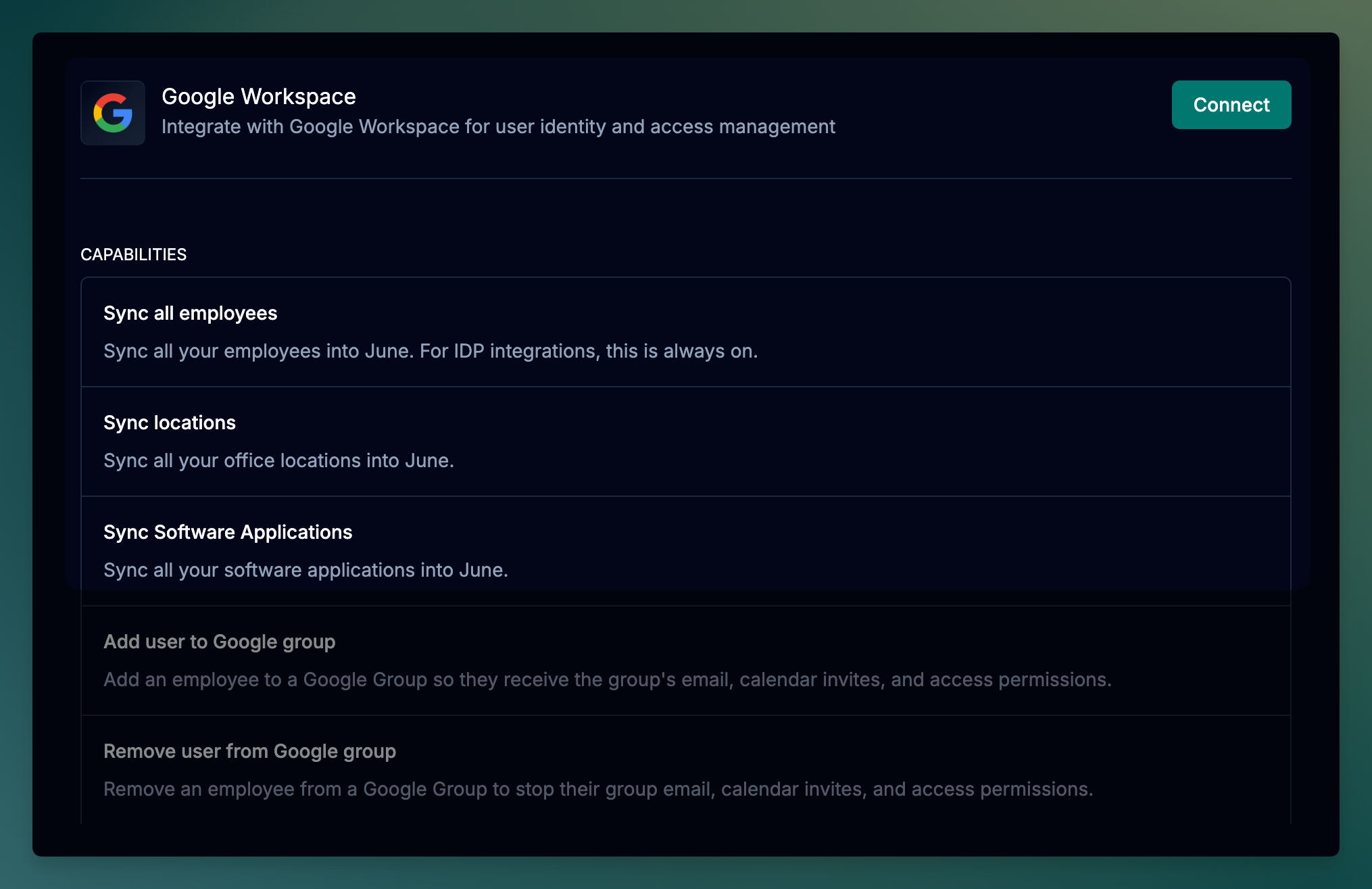
Once connected, June provides the following capabilities for Google Workspace:
### Data Synchronization
| Capability | Description |
| ------------------------------ | --------------------------------------------------------------------------- |
| **Sync all employees** | Sync all your employees into June. For IDP integrations, this is always on. |
| **Sync locations** | Sync all your office locations into June. |
| **Sync Software Applications** | Sync all your software applications into June. |
### Group Management
| Capability | Description |
| --------------------------------- | -------------------------------------------------------------------------------------------------------------- |
| **Add user to Google group** | Add an employee to a Google Group so they receive the group's email, calendar invites, and access permissions. |
| **Remove user from Google group** | Remove an employee from a Google Group to stop their group email, calendar invites, and access permissions. |
| **Create Google group** | Create a new Google Group for email distribution, calendar invites, and managing shared access. |
| **Delete Google group** | Delete a Google Group and remove all its members. |
| **List Google groups** | Retrieve a list of Google Groups in Google Workspace, optionally filtered by a search query. |
| **Get Google group details** | Retrieve detailed information about a specific Google Group. |
| **List employee's Google groups** | List all Google Groups that an employee is a member of. |
### Calendar Management
| Capability | Description |
| ------------------------------------ | ------------------------------------------------------------------------------------------- |
| **Add user to Google Calendar** | Grant an employee access to a Google Calendar by adding them as a reader, writer, or owner. |
| **Remove user from Google Calendar** | Remove an employee's access to a Google Calendar. |
## Prerequisites
Before starting the integration, ensure you have:
* Google Workspace Super Admin access
* June organization admin permissions
## Permissions and Data Access
June requests the following permissions to provide comprehensive asset management, security insights, and identity governance capabilities:
### Read-Only Permissions
| Scope | Purpose |
| -------------------------------------------- | ---------------------------------------------------------------------------------------------------------------------- |
| `admin.directory.user.readonly` | Syncing user directory data: names, emails, status, org units, used for employee-device mapping and account visibility |
| `admin.directory.group.readonly` | Fetching Google Groups and memberships to model teams, departments, and apply group-based policies |
| `admin.directory.resource.calendar.readonly` | Accessing resource calendars, buildings, and equipment (e.g., meeting rooms) for inventory and usage insights |
| `admin.directory.device.chromeos.readonly` | Syncing ChromeOS device inventory for asset tracking, device assignment, and compliance reporting |
| `admin.directory.device.mobile.readonly` | Fetching managed mobile device data (iOS/Android) to track mobile assets and enforce security posture |
| `admin.reports.audit.readonly` | Pulling audit logs (logins, admin actions, access attempts) for activity monitoring and anomaly detection |
| `admin.reports.usage.readonly` | Retrieving user and service usage metrics (e.g., Gmail, Drive) to assess software adoption and identify inactive users |
### Write Permissions
| Scope | Purpose |
| ------------------------------ | ------------------------------------------------------------------------------------------------------------------------------------------------------------------------------------------------------------------ |
| `admin.directory.group` | Managing Google Groups: create, update, and delete groups for automated team management |
| `admin.directory.group.member` | Managing group memberships: add or remove users from groups for access control automation |
| `admin.directory.user` | User lifecycle management: create, suspend, restore, and update user accounts for automated provisioning |
| `calendar.acls` | Calendar sharing management: add or remove a user's access to shared calendars during onboarding/offboarding. Scoped to access-control (ACL) changes only — June does not read, create, or modify calendar events. |
| `gmail.settings.sharing` | Email forwarding configuration: set up email forwarding for departing employees |
| `gmail.settings.basic` | Gmail settings management: configure basic Gmail settings for user accounts |
Write permissions enable June's automation capabilities for identity governance, onboarding/offboarding workflows, and access management. All actions are logged and can be reviewed in the activity history.
## Google Workspace OAuth Integration
1. Log into June
2. Navigate to Integrations page
3. Choose "Google Workspace" from the available integrations
4. Click **Connect with Google** to begin the OAuth authorization flow
1. You'll be redirected to Google's authorization page
2. Sign in with your Google Workspace Super Admin account
3. Review the permissions June is requesting
4. Click **Allow** to grant June access to your Google Workspace data.
5. If you see a message saying "Access blocked: Authorization Error" or "admin\_policy\_enforced" error during OAuth flow, please follow the troubleshooting steps below to resolve the issue.
1. After authorization, you'll be redirected back to June
2. If the integration is successful, you should see a message saying "Integration connected successfully" and you should see the integration as connected.
1. Click on the dropdown menu that has the status of the integration
2. Click **Test Integration**
3. If the integration is successful, you should see a message saying "Integration test successful".
4. If the integration is not successful, you should see a message saying "Integration test failed" and the **Status** should be **Inactive**.
5. Please follow the troubleshooting steps below to resolve the issue.
1. An sync will be scheduled automatically.
2. If you don't see a sync, you can click on the dropdown menu that has the status of the integration. Click **Sync Now**.
3. You should see the employees from Google Workspace being synced to June under the **Employees** tab.
## Troubleshooting
### Common Integration Issues
**Symptoms**: "Access blocked: Authorization Error" or "admin\_policy\_enforced" error during OAuth flow
**Solutions**:
If your organization has strict third-party app policies, you'll need to explicitly trust June's OAuth application:
1. In June, go to the Integrations page and select **Google Workspace**
2. Click on the dropdown menu next to the integration status
3. Click **Copy Client ID** to copy June's OAuth Client ID
4. Go to [Google Admin Console](https://admin.google.com) and sign in as a Super Admin
5. Navigate to **Security > Access and data control > API Controls**
6. Under **API Controls**, click **Manage Third-Party App Access**
7. Click **Add app > OAuth App Name or Client ID**
8. Paste the June OAuth Client ID you copied from step 3
9. Select **Trusted** as the access level
10. Click **Configure** and save changes
11. Return to June and retry the OAuth authorization flow
**Symptoms**: Integration shows as "Inactive" after OAuth authorization
**Solutions**:
* Ensure you authorized with a Google Workspace Super Admin account
* Verify your organization allows third-party app access
* Check if you have any conditional access policies blocking API access
* Try disconnecting and reconnecting the integration
* Contact June support if the issue persists
**Symptoms**: Users not syncing or outdated information
**Solutions**:
* Verify the authorized admin account has access to all organizational units
* Check if users are suspended or in organizational units with restricted access
* Review Google Workspace audit logs for API access issues
* Ensure users have the required attributes (email, name, etc.) populated
* Try a manual sync to see if specific error messages appear
## Support Resources
Need help with your Google Workspace integration?
* **Google Documentation**: Review [Google Workspace Admin SDK documentation](https://developers.google.com/admin-sdk) for API reference
* **June Support**: Contact support for integration-specific assistance
* **Community Forum**: Join discussions about identity provider integrations
Syncing data from Google Workspace to June may take up to 15 minutes based on the number of users in your Google Workspace environment.