> ## Documentation Index
> Fetch the complete documentation index at: https://docs.juneops.com/llms.txt
> Use this file to discover all available pages before exploring further.
# Jamf Pro Integration
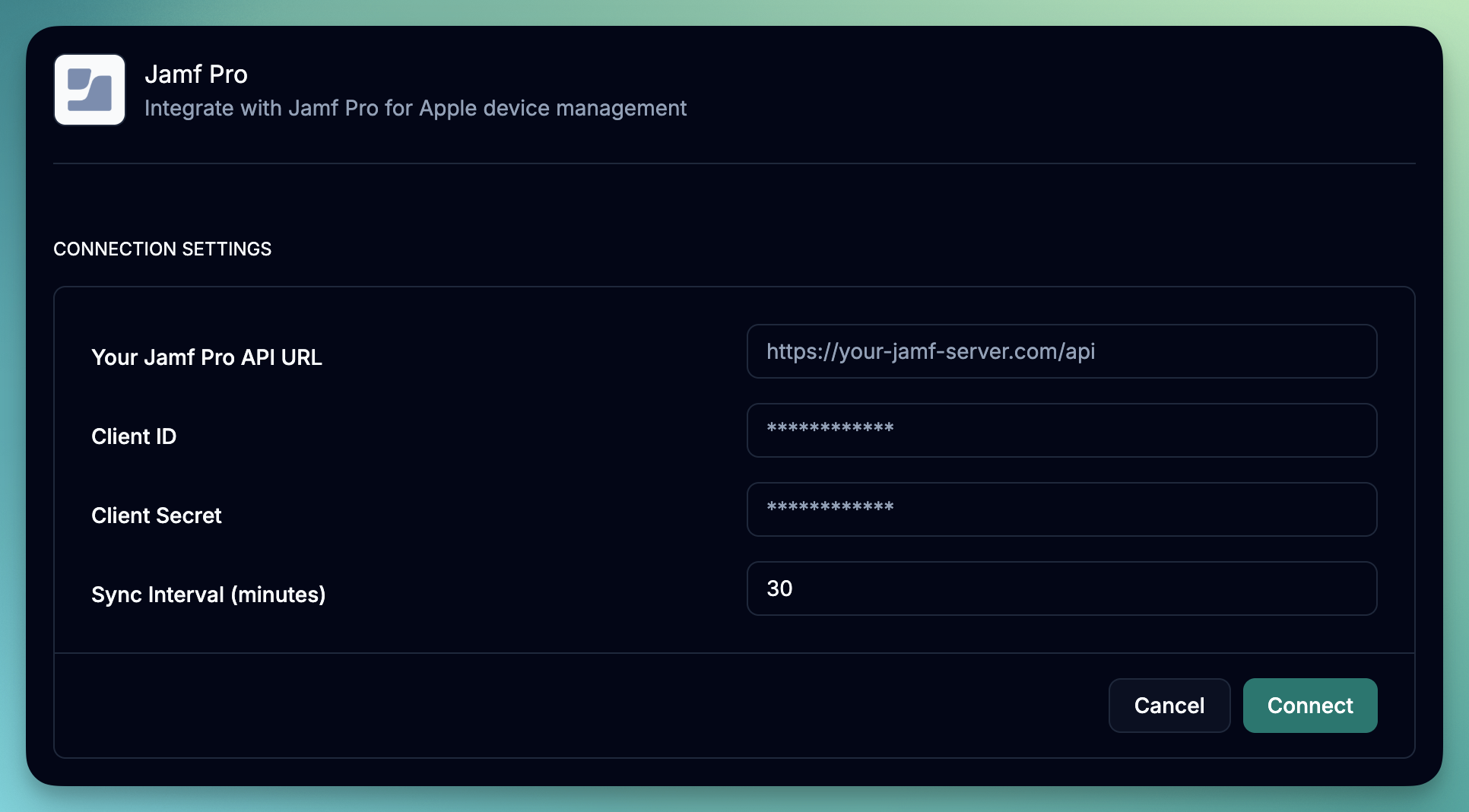 Connect your Jamf Pro environment with June for comprehensive Mac device management and asset tracking.
## What you'll accomplish
* Set up API access in Jamf Pro
* Configure the June integration
* Understand data synchronization
* Troubleshoot common issues
## Prerequisites
Before starting the integration, ensure you have:
* Jamf Pro administrator access
* API access enabled in Jamf Pro
* Network connectivity between June and Jamf Pro server
* June organization admin permissions
## Setup Process
### Step 1: Create API Account in Jamf Pro
1. Log into your Jamf Pro server
2. Navigate to Settings > System > API roles and clients
3. Go to the API roles tab and click the "+" button to create a new API role
4. Set the API role name to "June Integration"
5. Assign the following permissions:
* `Read Computers`
* `Update Computers`
* `Delete Computers`
* `Read Mobile Devices`
* `Update Mobile Devices`
* `Delete Mobile Devices`
* `Assign Users to Mobile Devices`
* `Read Users`
* `Update Users`
* `Read Departments`
* `Read Buildings`
* `Read Mobile Device Applications`
* `Read Mac Applications`
* `View Computer Device Lock Pin`
* `View Disk Encryption Recovery Key`
* `View Recovery Lock`
6. Click "Save"
1. Go to the API clients tab and click the "+" button to create a new API client
2. Set the API client name to "June Integration API Client"
3. Select the API role you created in the previous step
4. Set the access lifetime token to 60 (default value)
5. Click on the "Enable API client" button
6. Click "Save"
7. Generate the API client secret by clicking on the "Generate" button
8. Note the client ID and client secret for June configuration which we will use in the next step.
### Step 2: Add Integration in June
1. Log into June
2. Navigate to Integrations page
3. Choose "Jamf Pro" from the available integrations
1. Enter the Jamf Pro server URL
2. Provide the following information:
* **Jamf Pro Server URL**: Your Jamf Pro server URL (e.g., `https://yourcompany.jamfcloud.com`)
* **Client ID**: Client ID from the API account created in Step 1
* **Client Secret**: Client Secret from the API account created in Step 1
* **Sync Frequency**: How often June should sync with Jamf Pro. Default is daily.
3. Click "Save"
4. You should see whether you are successfully connected to Jamf Pro.
1. Click "Test Connection" to verify the setup from the dropdown option.
2. June will attempt to connect and retrieve a sample of data
3. Resolve any connection issues before proceeding
1. Click "Sync Now" option from the dropdown to sync your data.
2. June will start syncing your data.
3. You should see the sync progress in the "Sync Status" column.
4. You should start to see assets getting populated in June in a few minutes.
### Step 4: Configure Sync Settings
Choose how often June should sync with Jamf Pro:
* **Every day**: Recommended for most environments
* **Every other day**: For larger environments or limited bandwidth
* **Weekly**: For environments with fewer changes
Select which device attributes to synchronize:
* Device Data (Always included)
* Employee Data
* Location Data (office location data)
* Installed Software applications
* Purchase Data
* Device Actions (Restart, Lock, Wipe, etc.)
## Data Synchronization
### What Gets Synced
| Data Type | Jamf Pro Source | June Destination | Notes |
| ------------------- | ---------------------------------------------------- | ------------------------------------------------------------------------------------ | ---------------------------------- |
| **Device Identity** | Computer Name, Serial Number | Device Name, Asset Tag | Primary device identification |
| **Hardware Info** | Model, Processor, Memory, Storage | Hardware Specifications | Complete hardware inventory |
| **Software** | Operating System, Software Applications | System Info, App Inventory | OS version and installed apps |
| **User Assignment** | User and Location fields | Employee Assignment | Links devices to users |
| **Compliance** | Last Inventory, Check-in Status | Health Status | Device connectivity and compliance |
| **Department Data** | Device assignment to departments | Department and Location | Organizational groupings |
| **Purchase Data** | Purchase Date, Warranty Info, Cost Center, Asset Tag | Asset Purchase Date, Warranty Expiration, Department Cost Center, Physical Asset Tag | Purchase data for assets |
### Sync Process
1. **Initial Sync**: Complete inventory sync on first connection
2. **Incremental Updates**: We pull the latest data from Jamf Pro every day and also sync the data for individual devices that have been updated in the last 24 hours.
3. **Conflict Resolution**: June handles data conflicts automatically
4. **Error Handling**: Failed syncs are retried with exponential backoff
5. **Integration Health**: We monitor the health of the integration and alert you if there are any issues.
## Troubleshooting
### Common Connection Issues
**Symptoms**: "Invalid credentials" or "Authentication failed" errors
**Solutions**:
* Verify API account username and password
* Ensure the account hasn't been disabled
* Check if password has expired
* Confirm API access is enabled for the account
* Click on the "Test Connection" button to verify the connection.
**Symptoms**: Connection timeouts or "Unable to reach server" errors
**Solutions**:
* Verify Jamf Pro server URL is correct and accessible
* Check firewall rules allow June's IP addresses
* Ensure SSL certificate is valid (for HTTPS connections)
* Test connectivity from June's network to Jamf Pro
* Click on the "Test Connection" button to verify the connection.
**Symptoms**: "Access denied" or "Insufficient privileges" errors
**Solutions**:
* Review API account permissions in Jamf Pro
* Ensure all required object permissions are granted
* Check if permissions apply to the right scope (All Objects vs. specific categories)
* Verify the account has API access enabled
* Click on the "Test Connection" button to verify the connection.
### Sync Issues
**Possible Causes**:
* Devices not enrolled in Jamf Pro
* Devices haven't checked in recently
* Insufficient permissions to access certain devices
**Solutions**:
* Verify device enrollment status in Jamf Pro
* Check last inventory date for missing devices
* Confirm API permissions cover all required devices
**Possible Causes**:
* Devices not checking in regularly
* Sync frequency too low
* Network issues preventing updates
**Solutions**:
* Increase sync frequency if needed
* Force inventory update on devices by clicking on the "Sync Now" button in the integration page.
* Check device connectivity and management status
* Review sync logs for specific error messages
**Symptoms**: Slow syncs, timeouts, high resource usage
**Solutions**:
* Reduce sync frequency during peak hours
* Monitor Jamf Pro server performance during sync windows
* You could be hitting the rate limit of the Jamf Pro API. You could try to increase the sync frequency to reduce the number of devices that are synced.
## Next Steps
Once your Jamf Pro integration is configured:
Connect your identity provider for complete user correlation
Start managing your synced Mac devices with June's features
Create Mac-specific views and searches
Set up Mac-specific compliance monitoring
## Support
Need help with your Jamf Pro integration?
* **Documentation**: Review Jamf Pro API documentation
* **Community**: Join the June community forum
* **Support**: Contact June support with integration issues
* **Professional Services**: Consider professional setup assistance for complex environments
Jamf Pro integration typically syncs data within 15-30 minutes of initial setup. Large environments may take longer for the initial sync to complete.
Connect your Jamf Pro environment with June for comprehensive Mac device management and asset tracking.
## What you'll accomplish
* Set up API access in Jamf Pro
* Configure the June integration
* Understand data synchronization
* Troubleshoot common issues
## Prerequisites
Before starting the integration, ensure you have:
* Jamf Pro administrator access
* API access enabled in Jamf Pro
* Network connectivity between June and Jamf Pro server
* June organization admin permissions
## Setup Process
### Step 1: Create API Account in Jamf Pro
1. Log into your Jamf Pro server
2. Navigate to Settings > System > API roles and clients
3. Go to the API roles tab and click the "+" button to create a new API role
4. Set the API role name to "June Integration"
5. Assign the following permissions:
* `Read Computers`
* `Update Computers`
* `Delete Computers`
* `Read Mobile Devices`
* `Update Mobile Devices`
* `Delete Mobile Devices`
* `Assign Users to Mobile Devices`
* `Read Users`
* `Update Users`
* `Read Departments`
* `Read Buildings`
* `Read Mobile Device Applications`
* `Read Mac Applications`
* `View Computer Device Lock Pin`
* `View Disk Encryption Recovery Key`
* `View Recovery Lock`
6. Click "Save"
1. Go to the API clients tab and click the "+" button to create a new API client
2. Set the API client name to "June Integration API Client"
3. Select the API role you created in the previous step
4. Set the access lifetime token to 60 (default value)
5. Click on the "Enable API client" button
6. Click "Save"
7. Generate the API client secret by clicking on the "Generate" button
8. Note the client ID and client secret for June configuration which we will use in the next step.
### Step 2: Add Integration in June
1. Log into June
2. Navigate to Integrations page
3. Choose "Jamf Pro" from the available integrations
1. Enter the Jamf Pro server URL
2. Provide the following information:
* **Jamf Pro Server URL**: Your Jamf Pro server URL (e.g., `https://yourcompany.jamfcloud.com`)
* **Client ID**: Client ID from the API account created in Step 1
* **Client Secret**: Client Secret from the API account created in Step 1
* **Sync Frequency**: How often June should sync with Jamf Pro. Default is daily.
3. Click "Save"
4. You should see whether you are successfully connected to Jamf Pro.
1. Click "Test Connection" to verify the setup from the dropdown option.
2. June will attempt to connect and retrieve a sample of data
3. Resolve any connection issues before proceeding
1. Click "Sync Now" option from the dropdown to sync your data.
2. June will start syncing your data.
3. You should see the sync progress in the "Sync Status" column.
4. You should start to see assets getting populated in June in a few minutes.
### Step 4: Configure Sync Settings
Choose how often June should sync with Jamf Pro:
* **Every day**: Recommended for most environments
* **Every other day**: For larger environments or limited bandwidth
* **Weekly**: For environments with fewer changes
Select which device attributes to synchronize:
* Device Data (Always included)
* Employee Data
* Location Data (office location data)
* Installed Software applications
* Purchase Data
* Device Actions (Restart, Lock, Wipe, etc.)
## Data Synchronization
### What Gets Synced
| Data Type | Jamf Pro Source | June Destination | Notes |
| ------------------- | ---------------------------------------------------- | ------------------------------------------------------------------------------------ | ---------------------------------- |
| **Device Identity** | Computer Name, Serial Number | Device Name, Asset Tag | Primary device identification |
| **Hardware Info** | Model, Processor, Memory, Storage | Hardware Specifications | Complete hardware inventory |
| **Software** | Operating System, Software Applications | System Info, App Inventory | OS version and installed apps |
| **User Assignment** | User and Location fields | Employee Assignment | Links devices to users |
| **Compliance** | Last Inventory, Check-in Status | Health Status | Device connectivity and compliance |
| **Department Data** | Device assignment to departments | Department and Location | Organizational groupings |
| **Purchase Data** | Purchase Date, Warranty Info, Cost Center, Asset Tag | Asset Purchase Date, Warranty Expiration, Department Cost Center, Physical Asset Tag | Purchase data for assets |
### Sync Process
1. **Initial Sync**: Complete inventory sync on first connection
2. **Incremental Updates**: We pull the latest data from Jamf Pro every day and also sync the data for individual devices that have been updated in the last 24 hours.
3. **Conflict Resolution**: June handles data conflicts automatically
4. **Error Handling**: Failed syncs are retried with exponential backoff
5. **Integration Health**: We monitor the health of the integration and alert you if there are any issues.
## Troubleshooting
### Common Connection Issues
**Symptoms**: "Invalid credentials" or "Authentication failed" errors
**Solutions**:
* Verify API account username and password
* Ensure the account hasn't been disabled
* Check if password has expired
* Confirm API access is enabled for the account
* Click on the "Test Connection" button to verify the connection.
**Symptoms**: Connection timeouts or "Unable to reach server" errors
**Solutions**:
* Verify Jamf Pro server URL is correct and accessible
* Check firewall rules allow June's IP addresses
* Ensure SSL certificate is valid (for HTTPS connections)
* Test connectivity from June's network to Jamf Pro
* Click on the "Test Connection" button to verify the connection.
**Symptoms**: "Access denied" or "Insufficient privileges" errors
**Solutions**:
* Review API account permissions in Jamf Pro
* Ensure all required object permissions are granted
* Check if permissions apply to the right scope (All Objects vs. specific categories)
* Verify the account has API access enabled
* Click on the "Test Connection" button to verify the connection.
### Sync Issues
**Possible Causes**:
* Devices not enrolled in Jamf Pro
* Devices haven't checked in recently
* Insufficient permissions to access certain devices
**Solutions**:
* Verify device enrollment status in Jamf Pro
* Check last inventory date for missing devices
* Confirm API permissions cover all required devices
**Possible Causes**:
* Devices not checking in regularly
* Sync frequency too low
* Network issues preventing updates
**Solutions**:
* Increase sync frequency if needed
* Force inventory update on devices by clicking on the "Sync Now" button in the integration page.
* Check device connectivity and management status
* Review sync logs for specific error messages
**Symptoms**: Slow syncs, timeouts, high resource usage
**Solutions**:
* Reduce sync frequency during peak hours
* Monitor Jamf Pro server performance during sync windows
* You could be hitting the rate limit of the Jamf Pro API. You could try to increase the sync frequency to reduce the number of devices that are synced.
## Next Steps
Once your Jamf Pro integration is configured:
Connect your identity provider for complete user correlation
Start managing your synced Mac devices with June's features
Create Mac-specific views and searches
Set up Mac-specific compliance monitoring
## Support
Need help with your Jamf Pro integration?
* **Documentation**: Review Jamf Pro API documentation
* **Community**: Join the June community forum
* **Support**: Contact June support with integration issues
* **Professional Services**: Consider professional setup assistance for complex environments
Jamf Pro integration typically syncs data within 15-30 minutes of initial setup. Large environments may take longer for the initial sync to complete.