> ## Documentation Index
> Fetch the complete documentation index at: https://docs.juneops.com/llms.txt
> Use this file to discover all available pages before exploring further.
# Jira Integration
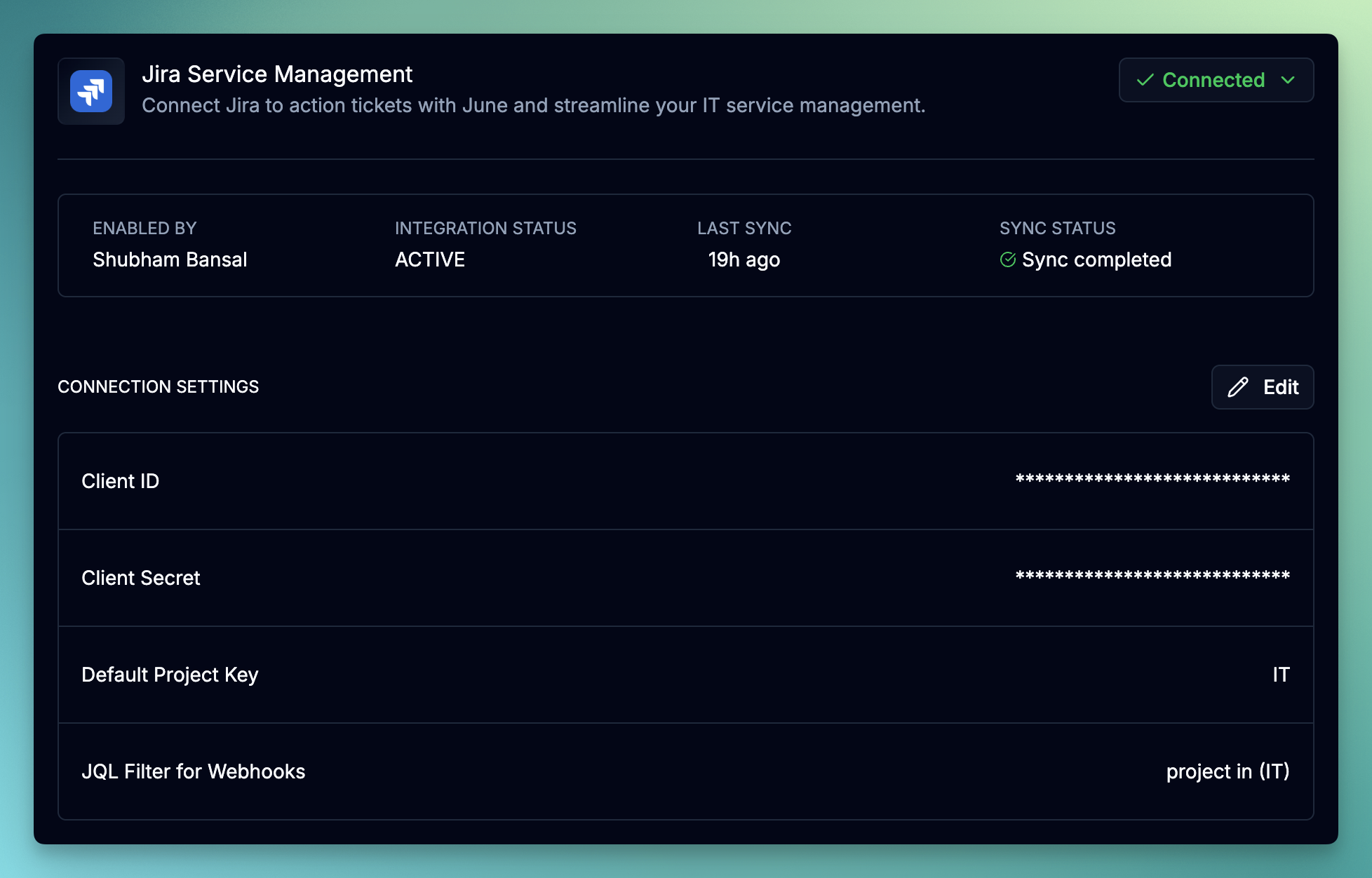 Connect your Jira environment with June to enable an intelligent AI agent that can triage, respond to, and manage tickets on your behalf.
June does **not** sync or import issues from your Jira instance. Instead, June acts as an intelligent agent that can be triggered to work on specific tickets.
## What you'll accomplish
* Create a service account in Atlassian Admin
* Generate OAuth 2.0 credentials for secure API access
* Configure the June integration
* Set up webhooks so June can respond to ticket events
* Learn how to trigger June to act on tickets
## Prerequisites
Before starting the integration, ensure you have:
* Atlassian organization admin access
* Access to create service accounts in Atlassian Admin
* June organization admin permissions
* Understanding of which Jira projects you want to integrate
## How June Works with Jira
### Triggering June
There are two ways to have June act on a Jira ticket:
Tag the June service account in a comment (e.g., `@June AI please triage this ticket`). June will read the ticket and respond.
Assign any ticket to the June service account. June will pick it up and take action based on your configured workflows.
### Available Actions
Once triggered, June can perform the following actions on Jira tickets:
| Action | Description |
| ---------------------- | ----------------------------------------------------------------------------------------------- |
| **Create ticket** | Create a new issue in any project with summary, description, issue type, priority, and assignee |
| **Get ticket** | Read ticket details including summary, description, status, priority, assignee, and comments |
| **Update description** | Modify the description/body of an existing ticket |
| **Add comment** | Post comments on tickets (supports internal/private comments for JSM) |
| **Transition ticket** | Change ticket status (e.g., Open → In Progress → Resolved) |
| **Assign to June** | Take ownership of a ticket |
| **Unassign ticket** | Remove the current assignee from a ticket |
### Example Use Cases
Assign tickets to June for automatic classification, priority assessment, and routing to the appropriate team or individual.
Mention June in a comment to get AI-assisted responses based on your knowledge base and asset data.
June can transition tickets through your workflow stages based on resolution criteria or time-based rules.
June can automatically create related tickets in other projects when specific conditions are met.
## Setup Process
### Step 1: Create a Service Account
1. Go to [Atlassian Admin](https://admin.atlassian.com)
2. Log in with your organization admin credentials
3. Navigate to **Directory** → **Service accounts**
1. Click **Create service account**
2. Enter a name: `June AI` and an optional description.
3. Select the app roles you want to grant to the service account.
* **Jira Service Management**: Grant the `User(agent)` role to the service account.
* **Jira Software**: Grant the `User` role to the service account.
4. Click **Save** to create the service account
### Step 2: Create OAuth 2.0 Credentials
1. Select the service account you just created (`june-integration`)
2. Click **Create credentials**
3. Select **OAuth 2.0**, then click **Next**
4. Set a name for the credentials: `june-service-account-credentials`.
Select the following scopes based on your integration needs:
**Required scopes (all integrations):**
* `read:jira-work` - Read issues and projects data
* `write:jira-work` - Create/edit/delete issues, post comments as user, create worklogs.
* `read:jira-user` - View user information (email, username, avatar)
1. Click **Create** to generate the credentials
2. **Immediately copy** the `client_id` and `client_secret`
3. Store these credentials securely. We will need these credentials in the next step to configure the June integration.
You won't be able to view the`client_id` and `client_secret` again after leaving this page. If you lose it, you'll need to create new credentials.
### Step 3: Add Service Account to Projects
The service account needs access to each Jira project you want to integrate with June.
1. Go to your Jira instance
2. Open the project you want to integrate
3. Navigate to **Project settings** → **People** (or **Access** depending on your Jira version)
1. Click **Add people**
2. Search for the service account email or username from the previous step.
3. Assign an appropriate role:
* **Service Desk Team** for Jira Service Management projects
* **Member** for Jira Software projects
4. Click **Add** to confirm
Repeat the above steps for each project you want to integrate with June.
### Step 4: Configure June Integration
1. Log into June
2. Navigate to **Settings** → **Integrations**
3. Select **Jira** from the available integrations
Provide the following information:
* **Client ID**: The `client_id` from Step 2
* **Client Secret**: The `client_secret` from Step 2
1. Click **Connect**
2. Verify the connection status shows as **Active**
3. Once connected, you can set the default project key where June will create new tickets. This is optional and can be changed later.
1. Click **Test Connection** to verify the setup
2. June will attempt to connect and retrieve sample data
3. Resolve any authentication issues before proceeding
1. Click on the **Create test ticket** button to test the ticket creation.
2. A ticket will be created in the default project you specified above.
3. Once the ticket is created, you can validate the ticket was created by the service account user.
4. Feel free to close or delete the ticket after testing.
## Webhook Configuration
Webhooks notify June when tickets are created, updated, or commented on—allowing June to respond in real-time when triggered by mentions or assignments.
### Step 1: Get Your Webhook URL
1. In June, go to **Settings** → **Integrations** → **Jira**
2. Under the **Webhooks** section, click **Register**
3. Copy the generated **Webhook URL**
### Step 2: Create Webhook in Jira
1. Go to your Jira instance
2. Click the **Settings** gear icon at the top right corner of the page.
3. Navigate to **System** → **Webhooks**
1. Click **Create a webhook**
2. Configure the following settings:
* **Name**: `June Integration`
* **URL**: Paste the webhook URL from Step 1
* **Secret**: Generate a secure secret and save it for the next step.
Choose which events should trigger the webhook:
* `Issue created` - When new issues are created
* `Issue updated` - When issues are modified
* `Issue deleted` - When issues are deleted
* `Comment created` - When comments are added
* `Comment updated` - When comments are edited
* `Comment deleted` - When comments are deleted
Use the **JQL Filter** field to limit which issues trigger webhooks. For example, `project = SUP` will only send webhooks for issues in the SUP project.
Click **Create** to save the webhook configuration.
### Step 3: Save Webhook Secret in June
1. Return to June's Jira integration settings
2. Enter the **Webhook Secret** you generated in Jira
3. Click **Save**
4. Your webhook is now active and will receive real-time updates
Test by creating a ticket in Jira and mentioning the June service account in a comment. June should respond within a few moments.
## API Scopes Reference
| Scope | Description | Required |
| --------------------------- | --------------------------------- | -------- |
| `read:jira-work` | Read issues, projects, and boards | Yes |
| `write:jira-work` | Create and update issues | Yes |
| `read:jira-user` | Read user profiles | Yes |
| `read:servicedesk-request` | Read JSM requests | JSM only |
| `write:servicedesk-request` | Create JSM requests | JSM only |
## Troubleshooting
### Common Authentication Issues
**Symptoms**: Error message stating no Jira instances are accessible
**Solutions**:
* Ensure the service account has been granted access to at least one Jira site
* Verify the OAuth scopes include `read:jira-work`
* Check that the service account is active and not disabled
* Re-authenticate the integration in June
**Symptoms**: Issues not appearing or 404 errors in sync logs
**Solutions**:
* The service account doesn't have access to the project
* Add the service account to the project with at least "Browse Projects" permission
* Verify the project key is correct in any JQL filters
* Check if the project has been archived or deleted
**Symptoms**: "Invalid credentials" or "Authentication failed" errors
**Solutions**:
* Client credentials may have been revoked in Atlassian Admin
* Re-create OAuth 2.0 credentials and update in June
* Verify the client ID and secret were copied correctly
* Check if the service account has been disabled
### Webhook Issues
**Possible Causes**:
* Webhook URL is incorrect in Jira
* Webhook is paused or disabled
* Webhook secret mismatch between Jira and June
* JQL filter is excluding your issues
**Solutions**:
* Verify the webhook URL is correct in Jira settings
* Ensure the webhook is enabled (not paused)
* Confirm the webhook secret matches in both Jira and June
* Test without JQL filters to verify basic functionality
* Check Jira's webhook logs for delivery errors
**Possible Causes**:
* Multiple webhooks configured for the same events
* Webhook retry mechanism triggering duplicates
**Solutions**:
* Review and remove duplicate webhook configurations
* June automatically deduplicates events based on issue ID and timestamp
### June Not Responding
**Possible Causes**:
* Webhook not configured or not receiving events
* Service account not added to the project
* Incorrect mention format (wrong username)
**Solutions**:
* Verify webhook is configured and enabled in Jira
* Confirm the service account has access to the project
* Check you're using the correct service account username in mentions
* Review webhook delivery logs in Jira for errors
**Possible Causes**:
* Webhook events for assignment changes not enabled
* Service account cannot be assigned tickets in the project
* Workflow restrictions preventing assignment
**Solutions**:
* Ensure "Issue updated" webhook event is enabled
* Verify the service account has the correct role to be assigned tickets
* Check project workflow rules for assignment restrictions
**Possible Causes**:
* Insufficient permissions for the action (e.g., transitioning tickets)
* Workflow restrictions preventing the action
* Required fields missing for the action
**Solutions**:
* Review service account permissions in the project
* Check project workflow for transition requirements
* Ensure any required custom fields are configured
## Security Best Practices
### Credential Management
* **Token Security**: OAuth 2.0 access tokens expire after 60 minutes and are automatically refreshed by June
* **Secret Storage**: Webhook secrets are encrypted at rest in June's secure storage
* **Unique Secrets**: Use a unique webhook secret for each integration
* **Regular Rotation**: Periodically rotate OAuth credentials (quarterly recommended)
### Access Control
* **Least Privilege**: Grant the service account only the permissions needed for integration
* **Project Scope**: Limit service account access to only the projects you need to integrate
* **Audit Logging**: Regularly review service account activity in Atlassian Admin
### Incident Response
* If you suspect a webhook URL has been compromised, regenerate it immediately in June
* If credentials may be compromised, revoke them in Atlassian Admin and create new ones
* Review Jira audit logs for any unauthorized access
## Next Steps
Once your Jira integration is configured:
Set up automated workflows that June can trigger based on ticket content
Connect your asset inventory so June can reference device data when handling tickets
Learn how June uses AI to triage and respond to tickets intelligently
Connect your IdP so June can identify users and their assigned devices
## Support Resources
Need help with your Jira integration?
* **Atlassian Documentation**: Review [Atlassian's OAuth 2.0 documentation](https://developer.atlassian.com/cloud/jira/platform/oauth-2-3lo-apps/) for additional details
* **June Support**: Contact support for integration-specific assistance
Jira integration typically establishes connection within minutes. Once webhooks are configured, June will respond to mentions and assignments in real-time.
Connect your Jira environment with June to enable an intelligent AI agent that can triage, respond to, and manage tickets on your behalf.
June does **not** sync or import issues from your Jira instance. Instead, June acts as an intelligent agent that can be triggered to work on specific tickets.
## What you'll accomplish
* Create a service account in Atlassian Admin
* Generate OAuth 2.0 credentials for secure API access
* Configure the June integration
* Set up webhooks so June can respond to ticket events
* Learn how to trigger June to act on tickets
## Prerequisites
Before starting the integration, ensure you have:
* Atlassian organization admin access
* Access to create service accounts in Atlassian Admin
* June organization admin permissions
* Understanding of which Jira projects you want to integrate
## How June Works with Jira
### Triggering June
There are two ways to have June act on a Jira ticket:
Tag the June service account in a comment (e.g., `@June AI please triage this ticket`). June will read the ticket and respond.
Assign any ticket to the June service account. June will pick it up and take action based on your configured workflows.
### Available Actions
Once triggered, June can perform the following actions on Jira tickets:
| Action | Description |
| ---------------------- | ----------------------------------------------------------------------------------------------- |
| **Create ticket** | Create a new issue in any project with summary, description, issue type, priority, and assignee |
| **Get ticket** | Read ticket details including summary, description, status, priority, assignee, and comments |
| **Update description** | Modify the description/body of an existing ticket |
| **Add comment** | Post comments on tickets (supports internal/private comments for JSM) |
| **Transition ticket** | Change ticket status (e.g., Open → In Progress → Resolved) |
| **Assign to June** | Take ownership of a ticket |
| **Unassign ticket** | Remove the current assignee from a ticket |
### Example Use Cases
Assign tickets to June for automatic classification, priority assessment, and routing to the appropriate team or individual.
Mention June in a comment to get AI-assisted responses based on your knowledge base and asset data.
June can transition tickets through your workflow stages based on resolution criteria or time-based rules.
June can automatically create related tickets in other projects when specific conditions are met.
## Setup Process
### Step 1: Create a Service Account
1. Go to [Atlassian Admin](https://admin.atlassian.com)
2. Log in with your organization admin credentials
3. Navigate to **Directory** → **Service accounts**
1. Click **Create service account**
2. Enter a name: `June AI` and an optional description.
3. Select the app roles you want to grant to the service account.
* **Jira Service Management**: Grant the `User(agent)` role to the service account.
* **Jira Software**: Grant the `User` role to the service account.
4. Click **Save** to create the service account
### Step 2: Create OAuth 2.0 Credentials
1. Select the service account you just created (`june-integration`)
2. Click **Create credentials**
3. Select **OAuth 2.0**, then click **Next**
4. Set a name for the credentials: `june-service-account-credentials`.
Select the following scopes based on your integration needs:
**Required scopes (all integrations):**
* `read:jira-work` - Read issues and projects data
* `write:jira-work` - Create/edit/delete issues, post comments as user, create worklogs.
* `read:jira-user` - View user information (email, username, avatar)
1. Click **Create** to generate the credentials
2. **Immediately copy** the `client_id` and `client_secret`
3. Store these credentials securely. We will need these credentials in the next step to configure the June integration.
You won't be able to view the`client_id` and `client_secret` again after leaving this page. If you lose it, you'll need to create new credentials.
### Step 3: Add Service Account to Projects
The service account needs access to each Jira project you want to integrate with June.
1. Go to your Jira instance
2. Open the project you want to integrate
3. Navigate to **Project settings** → **People** (or **Access** depending on your Jira version)
1. Click **Add people**
2. Search for the service account email or username from the previous step.
3. Assign an appropriate role:
* **Service Desk Team** for Jira Service Management projects
* **Member** for Jira Software projects
4. Click **Add** to confirm
Repeat the above steps for each project you want to integrate with June.
### Step 4: Configure June Integration
1. Log into June
2. Navigate to **Settings** → **Integrations**
3. Select **Jira** from the available integrations
Provide the following information:
* **Client ID**: The `client_id` from Step 2
* **Client Secret**: The `client_secret` from Step 2
1. Click **Connect**
2. Verify the connection status shows as **Active**
3. Once connected, you can set the default project key where June will create new tickets. This is optional and can be changed later.
1. Click **Test Connection** to verify the setup
2. June will attempt to connect and retrieve sample data
3. Resolve any authentication issues before proceeding
1. Click on the **Create test ticket** button to test the ticket creation.
2. A ticket will be created in the default project you specified above.
3. Once the ticket is created, you can validate the ticket was created by the service account user.
4. Feel free to close or delete the ticket after testing.
## Webhook Configuration
Webhooks notify June when tickets are created, updated, or commented on—allowing June to respond in real-time when triggered by mentions or assignments.
### Step 1: Get Your Webhook URL
1. In June, go to **Settings** → **Integrations** → **Jira**
2. Under the **Webhooks** section, click **Register**
3. Copy the generated **Webhook URL**
### Step 2: Create Webhook in Jira
1. Go to your Jira instance
2. Click the **Settings** gear icon at the top right corner of the page.
3. Navigate to **System** → **Webhooks**
1. Click **Create a webhook**
2. Configure the following settings:
* **Name**: `June Integration`
* **URL**: Paste the webhook URL from Step 1
* **Secret**: Generate a secure secret and save it for the next step.
Choose which events should trigger the webhook:
* `Issue created` - When new issues are created
* `Issue updated` - When issues are modified
* `Issue deleted` - When issues are deleted
* `Comment created` - When comments are added
* `Comment updated` - When comments are edited
* `Comment deleted` - When comments are deleted
Use the **JQL Filter** field to limit which issues trigger webhooks. For example, `project = SUP` will only send webhooks for issues in the SUP project.
Click **Create** to save the webhook configuration.
### Step 3: Save Webhook Secret in June
1. Return to June's Jira integration settings
2. Enter the **Webhook Secret** you generated in Jira
3. Click **Save**
4. Your webhook is now active and will receive real-time updates
Test by creating a ticket in Jira and mentioning the June service account in a comment. June should respond within a few moments.
## API Scopes Reference
| Scope | Description | Required |
| --------------------------- | --------------------------------- | -------- |
| `read:jira-work` | Read issues, projects, and boards | Yes |
| `write:jira-work` | Create and update issues | Yes |
| `read:jira-user` | Read user profiles | Yes |
| `read:servicedesk-request` | Read JSM requests | JSM only |
| `write:servicedesk-request` | Create JSM requests | JSM only |
## Troubleshooting
### Common Authentication Issues
**Symptoms**: Error message stating no Jira instances are accessible
**Solutions**:
* Ensure the service account has been granted access to at least one Jira site
* Verify the OAuth scopes include `read:jira-work`
* Check that the service account is active and not disabled
* Re-authenticate the integration in June
**Symptoms**: Issues not appearing or 404 errors in sync logs
**Solutions**:
* The service account doesn't have access to the project
* Add the service account to the project with at least "Browse Projects" permission
* Verify the project key is correct in any JQL filters
* Check if the project has been archived or deleted
**Symptoms**: "Invalid credentials" or "Authentication failed" errors
**Solutions**:
* Client credentials may have been revoked in Atlassian Admin
* Re-create OAuth 2.0 credentials and update in June
* Verify the client ID and secret were copied correctly
* Check if the service account has been disabled
### Webhook Issues
**Possible Causes**:
* Webhook URL is incorrect in Jira
* Webhook is paused or disabled
* Webhook secret mismatch between Jira and June
* JQL filter is excluding your issues
**Solutions**:
* Verify the webhook URL is correct in Jira settings
* Ensure the webhook is enabled (not paused)
* Confirm the webhook secret matches in both Jira and June
* Test without JQL filters to verify basic functionality
* Check Jira's webhook logs for delivery errors
**Possible Causes**:
* Multiple webhooks configured for the same events
* Webhook retry mechanism triggering duplicates
**Solutions**:
* Review and remove duplicate webhook configurations
* June automatically deduplicates events based on issue ID and timestamp
### June Not Responding
**Possible Causes**:
* Webhook not configured or not receiving events
* Service account not added to the project
* Incorrect mention format (wrong username)
**Solutions**:
* Verify webhook is configured and enabled in Jira
* Confirm the service account has access to the project
* Check you're using the correct service account username in mentions
* Review webhook delivery logs in Jira for errors
**Possible Causes**:
* Webhook events for assignment changes not enabled
* Service account cannot be assigned tickets in the project
* Workflow restrictions preventing assignment
**Solutions**:
* Ensure "Issue updated" webhook event is enabled
* Verify the service account has the correct role to be assigned tickets
* Check project workflow rules for assignment restrictions
**Possible Causes**:
* Insufficient permissions for the action (e.g., transitioning tickets)
* Workflow restrictions preventing the action
* Required fields missing for the action
**Solutions**:
* Review service account permissions in the project
* Check project workflow for transition requirements
* Ensure any required custom fields are configured
## Security Best Practices
### Credential Management
* **Token Security**: OAuth 2.0 access tokens expire after 60 minutes and are automatically refreshed by June
* **Secret Storage**: Webhook secrets are encrypted at rest in June's secure storage
* **Unique Secrets**: Use a unique webhook secret for each integration
* **Regular Rotation**: Periodically rotate OAuth credentials (quarterly recommended)
### Access Control
* **Least Privilege**: Grant the service account only the permissions needed for integration
* **Project Scope**: Limit service account access to only the projects you need to integrate
* **Audit Logging**: Regularly review service account activity in Atlassian Admin
### Incident Response
* If you suspect a webhook URL has been compromised, regenerate it immediately in June
* If credentials may be compromised, revoke them in Atlassian Admin and create new ones
* Review Jira audit logs for any unauthorized access
## Next Steps
Once your Jira integration is configured:
Set up automated workflows that June can trigger based on ticket content
Connect your asset inventory so June can reference device data when handling tickets
Learn how June uses AI to triage and respond to tickets intelligently
Connect your IdP so June can identify users and their assigned devices
## Support Resources
Need help with your Jira integration?
* **Atlassian Documentation**: Review [Atlassian's OAuth 2.0 documentation](https://developer.atlassian.com/cloud/jira/platform/oauth-2-3lo-apps/) for additional details
* **June Support**: Contact support for integration-specific assistance
Jira integration typically establishes connection within minutes. Once webhooks are configured, June will respond to mentions and assignments in real-time.