> ## Documentation Index
> Fetch the complete documentation index at: https://docs.juneops.com/llms.txt
> Use this file to discover all available pages before exploring further.
# Kandji Integration
> Complete integration guide for connecting Kandji with June
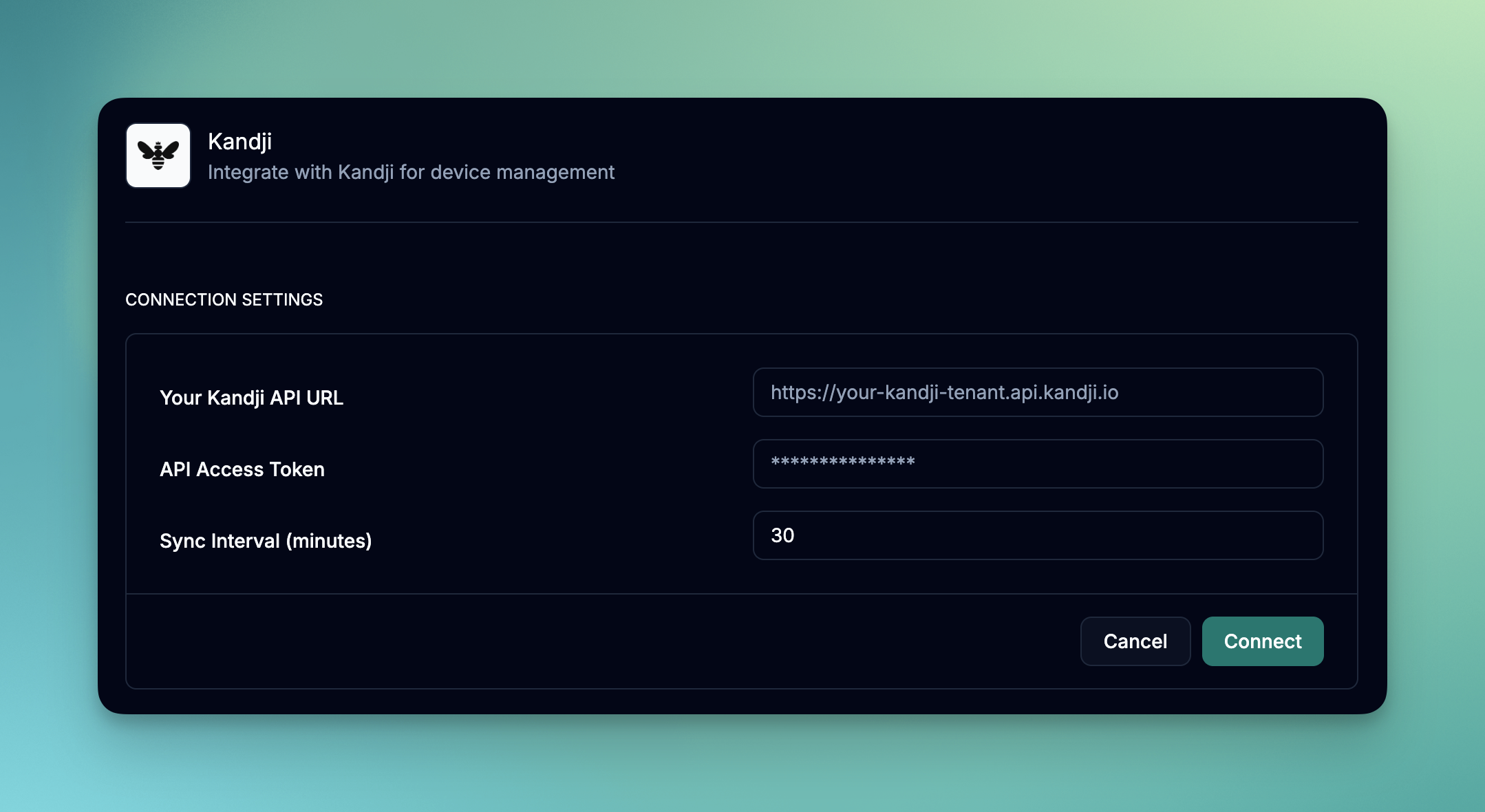 Connect your Kandji tenant with June for modern Mac device management and comprehensive asset tracking.
## What you'll accomplish
* Generate API access token in Kandji
* Configure the June integration
* Understand Kandji data mapping
* Set up automated sync preferences
## Prerequisites
Before starting the integration, ensure you have:
* Kandji tenant with API access
* Admin or appropriate API permissions in Kandji
* June organization admin permissions
* Understanding of your Kandji device management setup
## Setup Process
### Step 1: Generate API Token in Kandji
1. Log into your Kandji tenant
2. Navigate to **Settings** in the left sidebar
3. Go to **Access** section
4. Select **API Token**
1. Click **Generate New Token**
2. Enter a descriptive name: "June Integration Token"
3. Set appropriate permissions (see permissions section below)
4. Click **Generate**
1. **Immediately** copy the generated token
2. Store it securely - you won't be able to view it again
3. Note the creation date for future reference
### Step 2: Configure Token Permissions
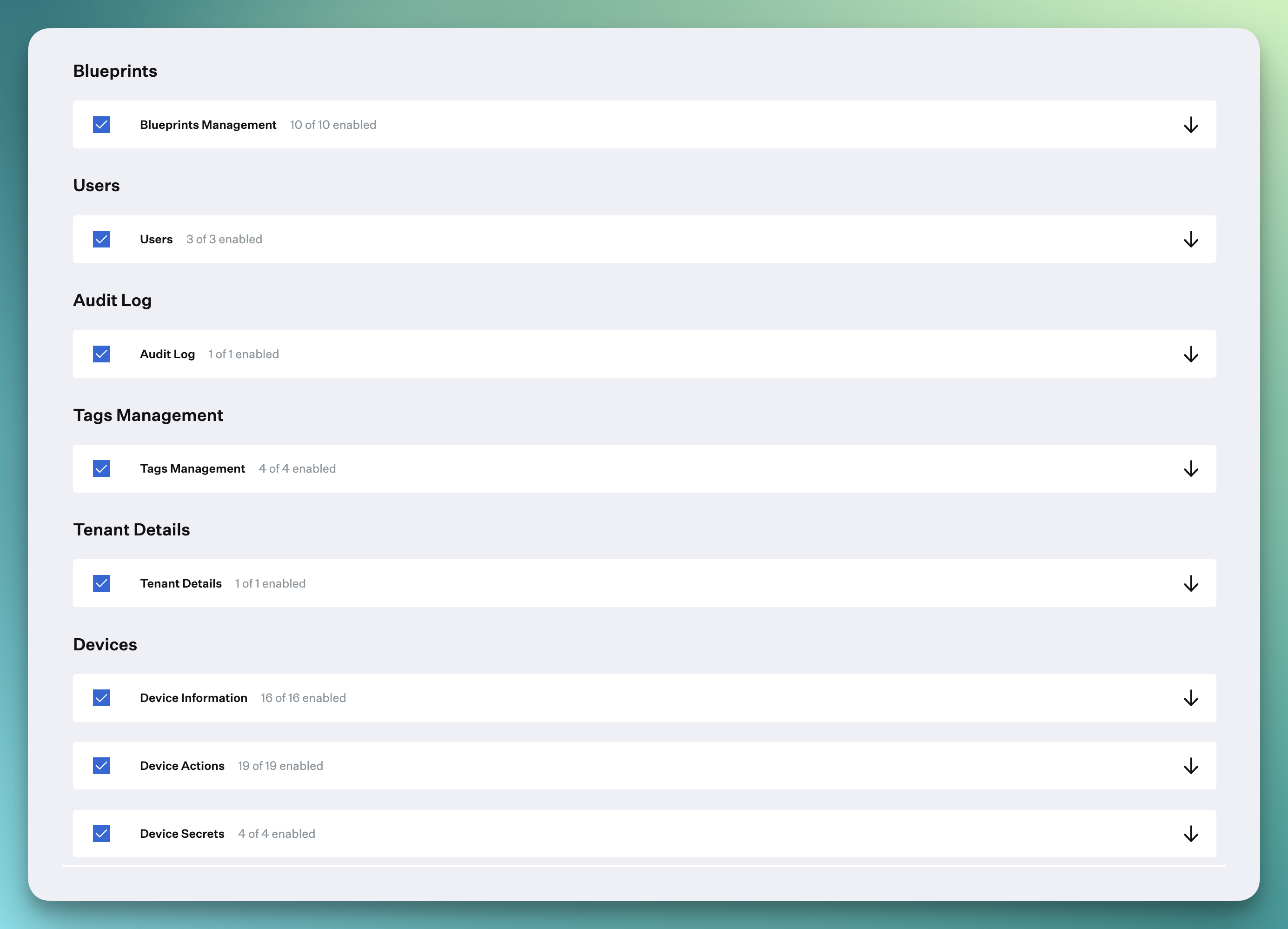
Ensure your API token has the following permissions:
#### Required Permissions
* **Blueprints**: Read access to device blueprint configurations
* **Users**: Read access to user assignments
* **Audit Logs**: Read access for fetching devices audit events
* **Tag Management**: Read and write access to tags
* **Tenant Details**: Read access to tenant license information. This is used to test the connection.
* **Devices**: Access to device information, device actions, and device secrets (optional).
* **Device Secrets**: Access to device secrets so that we can show them in the June UI. We don't store these credentials and they are fetched on demand.
Connect your Kandji tenant with June for modern Mac device management and comprehensive asset tracking.
## What you'll accomplish
* Generate API access token in Kandji
* Configure the June integration
* Understand Kandji data mapping
* Set up automated sync preferences
## Prerequisites
Before starting the integration, ensure you have:
* Kandji tenant with API access
* Admin or appropriate API permissions in Kandji
* June organization admin permissions
* Understanding of your Kandji device management setup
## Setup Process
### Step 1: Generate API Token in Kandji
1. Log into your Kandji tenant
2. Navigate to **Settings** in the left sidebar
3. Go to **Access** section
4. Select **API Token**
1. Click **Generate New Token**
2. Enter a descriptive name: "June Integration Token"
3. Set appropriate permissions (see permissions section below)
4. Click **Generate**
1. **Immediately** copy the generated token
2. Store it securely - you won't be able to view it again
3. Note the creation date for future reference
### Step 2: Configure Token Permissions
Ensure your API token has the following permissions:
#### Required Permissions
* **Blueprints**: Read access to device blueprint configurations
* **Users**: Read access to user assignments
* **Audit Logs**: Read access for fetching devices audit events
* **Tag Management**: Read and write access to tags
* **Tenant Details**: Read access to tenant license information. This is used to test the connection.
* **Devices**: Access to device information, device actions, and device secrets (optional).
* **Device Secrets**: Access to device secrets so that we can show them in the June UI. We don't store these credentials and they are fetched on demand.
 ### Step 3: Configure June Integration
1. Log into June
2. Navigate to **Integrations > MDM Systems**
3. Click **Add Integration**
1. Choose "Kandji" from the available integrations
2. Click **Configure** to start the setup wizard
Provide the following information:
* **Kandji Organization API URL**: Your Kandji organization API URL (e.g., `https://yourcompany.api.kandji.io`).
* **API Token**: The token generated in Step 1
* **Sync Interval**: How often June should sync with Kandji. Default is daily.
1. Click **Test Connection** to verify the setup
2. June will attempt to connect and retrieve sample data
3. Resolve any authentication issues before proceeding
### Step 4: Configure Sync Preferences
Choose how often June should sync with Kandji:
* **Every day**: Recommended for most environments
* **Every other day**: For larger environments or limited bandwidth
* **Weekly**: For environments with fewer changes
Select which device attributes to synchronize:
* Device Data (Always included)
* Employee Data
* Installed Software applications
* Device Actions (Restart, Lock, Wipe, etc.)
### Step 5: Schedule your first sync
Click on the "Sync Now" button to schedule your first sync.
## Data Synchronization
### What Gets Synced
| Data Type | Kandji Source | June Destination | Notes |
| ------------------- | --------------------------------------- | -------------------------- | ---------------------------------- |
| **Device Identity** | Computer Name, Serial Number | Device Name, Asset Tag | Primary device identification |
| **Hardware Info** | Model, Processor, Memory, Storage | Hardware Specifications | Complete hardware inventory |
| **Software** | Operating System, Software Applications | System Info, App Inventory | OS version and installed apps |
| **User Assignment** | User and Location fields | Employee Assignment | Links devices to users |
| **Compliance** | Last Inventory, Check-in Status | Health Status | Device connectivity and compliance |
| **Department Data** | Device assignment to departments | Department and Location | Organizational groupings |
## Troubleshooting
### Common Authentication Issues
**Symptoms**: "Authentication failed" or "Invalid token" errors
**Solutions**:
* Verify the API token was copied correctly
* Ensure that the *Tenant Details* permission is enabled.
* Check if the token has been revoked or expired
* Ensure sufficient permissions were granted to the token
* Test the connection by clicking the "Test Connection" button.
**Symptoms**: "Access denied" errors for specific operations
**Solutions**:
* Review token permissions in Kandji settings
* Ensure all required permissions are enabled
* Check if permissions were modified after token creation.
* Edit the token permissions in Kandji and save.
* Test the connection by clicking the "Test Connection" button.
**Symptoms**: "Tenant not found" or connection errors
**Solutions**:
* Verify the Kandji organization API URL is correct. You must enter the full URL [https://subdomain.api.kandji.io](https://subdomain.api.kandji.io)
* Check for typos in the subdomain field
* Ensure the Kandji tenant is active and accessible
* Test direct access to Kandji web interface
### Sync Issues
**Possible Causes**:
* Devices not enrolled in Kandji
* Devices haven't checked in recently
* Insufficient permissions to access certain devices
**Solutions**:
* Verify device enrollment status in Kandji
* Check last inventory date for missing devices
* Confirm API permissions cover all required devices
**Possible Causes**:
* Devices not checking in regularly
* Sync frequency too low
* Network issues preventing updates
**Solutions**:
* Increase sync frequency if needed
* Force inventory update on devices by clicking on the "Sync Now" button in the integration page.
* Check device connectivity and management status
* Review sync logs for specific error messages
**Symptoms**: Slow syncs, timeouts, high resource usage
**Solutions**:
* Reduce sync frequency during peak hours
* Monitor Kandji server performance during sync windows
* You could be hitting the rate limit of the Kandji API. You could try to increase the sync frequency to reduce the number of devices that are synced.
## Next Steps
Once your Kandji integration is configured:
Create views specifically for Mac device management
Set up compliance monitoring for Kandji device compliance.
Connect identity providers for complete user-device correlation
Set up automated actions based on Kandji device status
## Support Resources
Need help with your Kandji integration?
* **Kandji Documentation**: Review Kandji API documentation and guides
* **June Community**: Join discussions about Mac device management
* **Integration Support**: Contact June support for integration-specific issues
* **Best Practices**: Consult with June solutions engineers for optimization
Kandji integration typically establishes connection within minutes. It can take up to 1 hour for the initial sync to complete depending on the number of devices in your organization.
### Step 3: Configure June Integration
1. Log into June
2. Navigate to **Integrations > MDM Systems**
3. Click **Add Integration**
1. Choose "Kandji" from the available integrations
2. Click **Configure** to start the setup wizard
Provide the following information:
* **Kandji Organization API URL**: Your Kandji organization API URL (e.g., `https://yourcompany.api.kandji.io`).
* **API Token**: The token generated in Step 1
* **Sync Interval**: How often June should sync with Kandji. Default is daily.
1. Click **Test Connection** to verify the setup
2. June will attempt to connect and retrieve sample data
3. Resolve any authentication issues before proceeding
### Step 4: Configure Sync Preferences
Choose how often June should sync with Kandji:
* **Every day**: Recommended for most environments
* **Every other day**: For larger environments or limited bandwidth
* **Weekly**: For environments with fewer changes
Select which device attributes to synchronize:
* Device Data (Always included)
* Employee Data
* Installed Software applications
* Device Actions (Restart, Lock, Wipe, etc.)
### Step 5: Schedule your first sync
Click on the "Sync Now" button to schedule your first sync.
## Data Synchronization
### What Gets Synced
| Data Type | Kandji Source | June Destination | Notes |
| ------------------- | --------------------------------------- | -------------------------- | ---------------------------------- |
| **Device Identity** | Computer Name, Serial Number | Device Name, Asset Tag | Primary device identification |
| **Hardware Info** | Model, Processor, Memory, Storage | Hardware Specifications | Complete hardware inventory |
| **Software** | Operating System, Software Applications | System Info, App Inventory | OS version and installed apps |
| **User Assignment** | User and Location fields | Employee Assignment | Links devices to users |
| **Compliance** | Last Inventory, Check-in Status | Health Status | Device connectivity and compliance |
| **Department Data** | Device assignment to departments | Department and Location | Organizational groupings |
## Troubleshooting
### Common Authentication Issues
**Symptoms**: "Authentication failed" or "Invalid token" errors
**Solutions**:
* Verify the API token was copied correctly
* Ensure that the *Tenant Details* permission is enabled.
* Check if the token has been revoked or expired
* Ensure sufficient permissions were granted to the token
* Test the connection by clicking the "Test Connection" button.
**Symptoms**: "Access denied" errors for specific operations
**Solutions**:
* Review token permissions in Kandji settings
* Ensure all required permissions are enabled
* Check if permissions were modified after token creation.
* Edit the token permissions in Kandji and save.
* Test the connection by clicking the "Test Connection" button.
**Symptoms**: "Tenant not found" or connection errors
**Solutions**:
* Verify the Kandji organization API URL is correct. You must enter the full URL [https://subdomain.api.kandji.io](https://subdomain.api.kandji.io)
* Check for typos in the subdomain field
* Ensure the Kandji tenant is active and accessible
* Test direct access to Kandji web interface
### Sync Issues
**Possible Causes**:
* Devices not enrolled in Kandji
* Devices haven't checked in recently
* Insufficient permissions to access certain devices
**Solutions**:
* Verify device enrollment status in Kandji
* Check last inventory date for missing devices
* Confirm API permissions cover all required devices
**Possible Causes**:
* Devices not checking in regularly
* Sync frequency too low
* Network issues preventing updates
**Solutions**:
* Increase sync frequency if needed
* Force inventory update on devices by clicking on the "Sync Now" button in the integration page.
* Check device connectivity and management status
* Review sync logs for specific error messages
**Symptoms**: Slow syncs, timeouts, high resource usage
**Solutions**:
* Reduce sync frequency during peak hours
* Monitor Kandji server performance during sync windows
* You could be hitting the rate limit of the Kandji API. You could try to increase the sync frequency to reduce the number of devices that are synced.
## Next Steps
Once your Kandji integration is configured:
Create views specifically for Mac device management
Set up compliance monitoring for Kandji device compliance.
Connect identity providers for complete user-device correlation
Set up automated actions based on Kandji device status
## Support Resources
Need help with your Kandji integration?
* **Kandji Documentation**: Review Kandji API documentation and guides
* **June Community**: Join discussions about Mac device management
* **Integration Support**: Contact June support for integration-specific issues
* **Best Practices**: Consult with June solutions engineers for optimization
Kandji integration typically establishes connection within minutes. It can take up to 1 hour for the initial sync to complete depending on the number of devices in your organization.