> ## Documentation Index
> Fetch the complete documentation index at: https://docs.juneops.com/llms.txt
> Use this file to discover all available pages before exploring further.
# Microsoft Intune Integration
> Complete integration guide for connecting Microsoft Intune with June
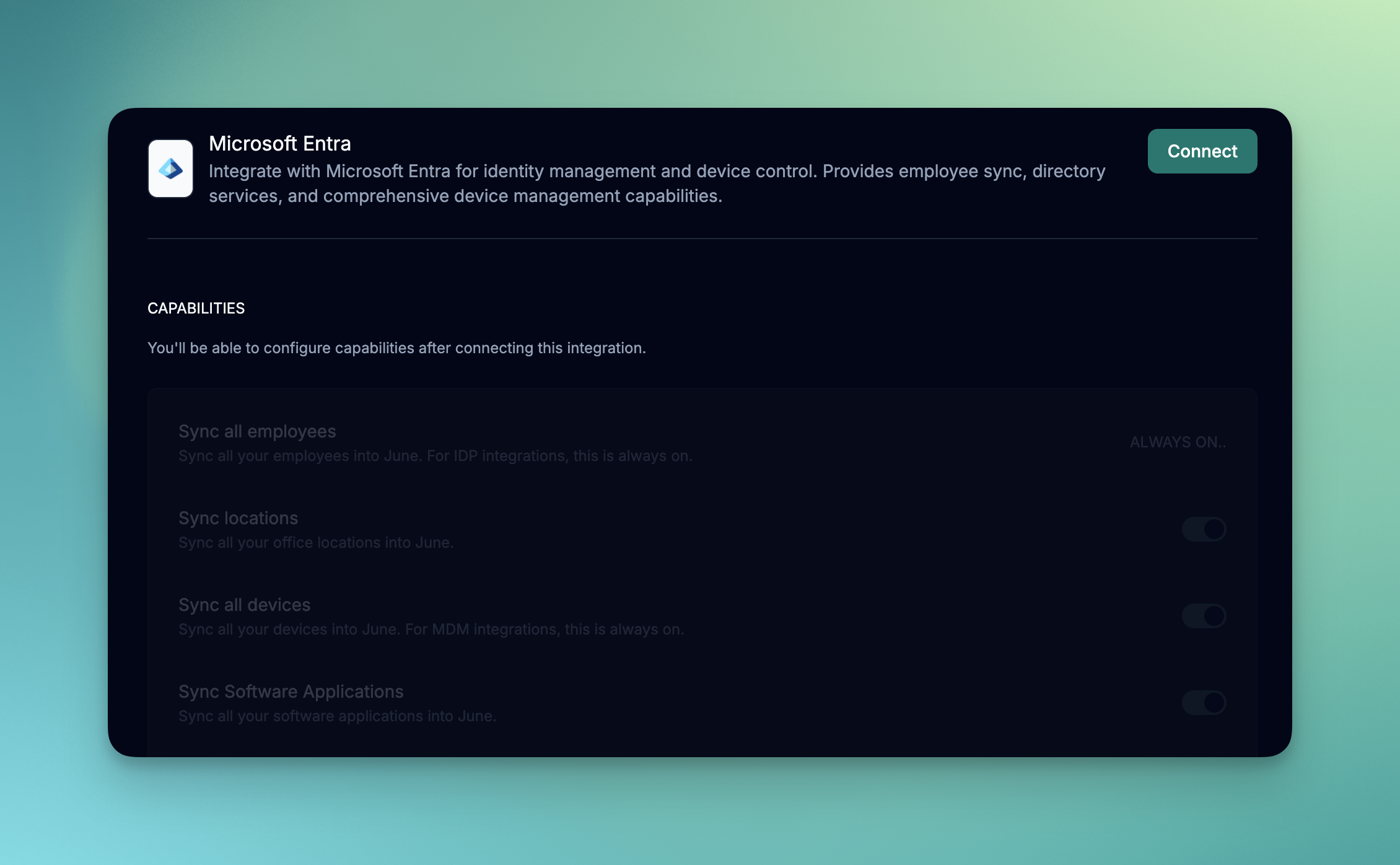 June connects to Microsoft through a **single Microsoft Entra integration** that syncs both your identity (employees) and device data. You do not need two separate connections. See the [Microsoft Entra integration](/integrations/microsoft-entra).
Connect your Microsoft Intune environment with June for comprehensive device management across Windows, macOS, iOS, and Android devices.
## What you'll accomplish
* Register an Azure application for June
* Configure Microsoft Graph API permissions
* Set up the June integration
* Understand cross-platform device synchronization
## Prerequisites
Before starting the integration, ensure you have:
* Microsoft Entra ID with Intune licensing
* Global Administrator or Intune Administrator role
* Azure app registration permissions
* June organization admin permissions
## Setup Process
### Step 1: Configure June Integration
1. Log into June
2. Navigate to **Integrations > MDM Systems**
3. Click **Add Integration**
1. Choose "Microsoft Entra" from available integrations
2. Click **Connect** to start setup
1. Sign in with your Azure administrator account
2. Grant consent for the requested permissions.
3. On success, you’ll return to June with integration activated.
### Step 2: Configure Sync Settings
Choose sync interval based on your environment:
* **Every day**: For most environments
* **Every other day**: For environments with a large number of devices
* **Every week**: For environments with infrequent changes
Select what data to synchronize:
* Sync all employees
* Device inventory and specifications (always on)
* Sync Software Applications
* Device actions
## Data Synchronization
### Supported Device Types
| Platform | Device Types | Key Data Synced |
| -------------- | -------------------------- | ----------------------------------------------------- |
| **Windows** | Desktops, Laptops, Tablets | Hardware specs, compliance status, installed apps |
| **macOS** | MacBooks, iMacs, Mac minis | System info, security settings, application inventory |
| **iOS/iPadOS** | iPhones, iPads | Device model, OS version, app compliance |
| **Android** | Phones, Tablets | Device info, work profile status, managed apps |
## Troubleshooting
### Authentication Issues
**Symptoms**: "Invalid client" or "Authentication failed" errors
**Solutions**:
* Verify Tenant ID, Client ID, and Client Secret are correct
* Check if client secret has expired
* Ensure app registration is in the correct tenant
* Confirm admin consent was granted
**Symptoms**: "Access denied" or "Forbidden" errors when syncing
**Solutions**:
* Review API permissions in Azure app registration
* Ensure admin consent was granted for all permissions
* Check if permissions were accidentally removed
* Verify the user granting consent had sufficient privileges
**Symptoms**: "Tenant not found" or "Invalid tenant" errors
**Solutions**:
* Confirm Tenant ID is correct (check Azure portal)
* Verify app registration exists in the correct tenant
* Check if tenant has appropriate licensing
* Ensure network connectivity to Azure endpoints
### Sync Problems
**Possible Causes**:
* Devices not enrolled in Intune
* Insufficient permissions to access device data
* Device filtering excluding expected devices
* Conditional access blocking access
**Solutions**:
* Verify device enrollment status in Intune portal
* Check API permissions include all required scopes
* Review device filters in June integration settings
* Confirm devices meet sync criteria
**Possible Causes**:
* Devices not syncing with Intune regularly
* Long sync intervals in June
* Network connectivity issues
**Solutions**:
* Force device sync in Intune portal
* Reduce sync frequency in June
* Check device connectivity and management status
* Review Intune device compliance policies
**Symptoms**: Slow syncs, API throttling, timeouts
**Solutions**:
* Implement device filtering to reduce data volume
* Stagger sync schedules during off-peak hours
* Monitor Microsoft Graph API throttling limits
* Consider breaking large tenants into multiple integrations
## Microsoft Graph API Limits
Be aware of Microsoft Graph throttling limits:
| Resource Type | Throttle Limits | Best Practices |
| -------------------- | ------------------------ | ---------------------------- |
| **Device queries** | 1000 requests/10 minutes | Use filtering and paging |
| **User queries** | 3000 requests/5 minutes | Batch requests when possible |
| **Application data** | 600 requests/20 seconds | Implement retry logic |
## Next Steps
Once your Intune integration is configured:
Set up conditional access policies based on device compliance
Create views that span across different device platforms
Generate compliance reports across your entire device fleet
Set up automated remediation based on compliance status
Client secrets expire and must be renewed. Set calendar reminders to rotate secrets before expiration to avoid integration disruption.
Intune integration supports all major device platforms. Sync frequency and data availability may vary by platform and enrollment type.
June connects to Microsoft through a **single Microsoft Entra integration** that syncs both your identity (employees) and device data. You do not need two separate connections. See the [Microsoft Entra integration](/integrations/microsoft-entra).
Connect your Microsoft Intune environment with June for comprehensive device management across Windows, macOS, iOS, and Android devices.
## What you'll accomplish
* Register an Azure application for June
* Configure Microsoft Graph API permissions
* Set up the June integration
* Understand cross-platform device synchronization
## Prerequisites
Before starting the integration, ensure you have:
* Microsoft Entra ID with Intune licensing
* Global Administrator or Intune Administrator role
* Azure app registration permissions
* June organization admin permissions
## Setup Process
### Step 1: Configure June Integration
1. Log into June
2. Navigate to **Integrations > MDM Systems**
3. Click **Add Integration**
1. Choose "Microsoft Entra" from available integrations
2. Click **Connect** to start setup
1. Sign in with your Azure administrator account
2. Grant consent for the requested permissions.
3. On success, you’ll return to June with integration activated.
### Step 2: Configure Sync Settings
Choose sync interval based on your environment:
* **Every day**: For most environments
* **Every other day**: For environments with a large number of devices
* **Every week**: For environments with infrequent changes
Select what data to synchronize:
* Sync all employees
* Device inventory and specifications (always on)
* Sync Software Applications
* Device actions
## Data Synchronization
### Supported Device Types
| Platform | Device Types | Key Data Synced |
| -------------- | -------------------------- | ----------------------------------------------------- |
| **Windows** | Desktops, Laptops, Tablets | Hardware specs, compliance status, installed apps |
| **macOS** | MacBooks, iMacs, Mac minis | System info, security settings, application inventory |
| **iOS/iPadOS** | iPhones, iPads | Device model, OS version, app compliance |
| **Android** | Phones, Tablets | Device info, work profile status, managed apps |
## Troubleshooting
### Authentication Issues
**Symptoms**: "Invalid client" or "Authentication failed" errors
**Solutions**:
* Verify Tenant ID, Client ID, and Client Secret are correct
* Check if client secret has expired
* Ensure app registration is in the correct tenant
* Confirm admin consent was granted
**Symptoms**: "Access denied" or "Forbidden" errors when syncing
**Solutions**:
* Review API permissions in Azure app registration
* Ensure admin consent was granted for all permissions
* Check if permissions were accidentally removed
* Verify the user granting consent had sufficient privileges
**Symptoms**: "Tenant not found" or "Invalid tenant" errors
**Solutions**:
* Confirm Tenant ID is correct (check Azure portal)
* Verify app registration exists in the correct tenant
* Check if tenant has appropriate licensing
* Ensure network connectivity to Azure endpoints
### Sync Problems
**Possible Causes**:
* Devices not enrolled in Intune
* Insufficient permissions to access device data
* Device filtering excluding expected devices
* Conditional access blocking access
**Solutions**:
* Verify device enrollment status in Intune portal
* Check API permissions include all required scopes
* Review device filters in June integration settings
* Confirm devices meet sync criteria
**Possible Causes**:
* Devices not syncing with Intune regularly
* Long sync intervals in June
* Network connectivity issues
**Solutions**:
* Force device sync in Intune portal
* Reduce sync frequency in June
* Check device connectivity and management status
* Review Intune device compliance policies
**Symptoms**: Slow syncs, API throttling, timeouts
**Solutions**:
* Implement device filtering to reduce data volume
* Stagger sync schedules during off-peak hours
* Monitor Microsoft Graph API throttling limits
* Consider breaking large tenants into multiple integrations
## Microsoft Graph API Limits
Be aware of Microsoft Graph throttling limits:
| Resource Type | Throttle Limits | Best Practices |
| -------------------- | ------------------------ | ---------------------------- |
| **Device queries** | 1000 requests/10 minutes | Use filtering and paging |
| **User queries** | 3000 requests/5 minutes | Batch requests when possible |
| **Application data** | 600 requests/20 seconds | Implement retry logic |
## Next Steps
Once your Intune integration is configured:
Set up conditional access policies based on device compliance
Create views that span across different device platforms
Generate compliance reports across your entire device fleet
Set up automated remediation based on compliance status
Client secrets expire and must be renewed. Set calendar reminders to rotate secrets before expiration to avoid integration disruption.
Intune integration supports all major device platforms. Sync frequency and data availability may vary by platform and enrollment type.