
What you’ll accomplish
- Configure Okta as your SSO provider
- Create an OIDC app integration in Okta
- Enable seamless authentication for your team
- Improve security with centralized identity management
Prerequisites
Make sure you have:- Okta Admin access to create app integrations
- June organization admin permissions
- Verified email domain set up in June via Settings > Email Domains
June currently supports Okta as the SSO provider. Additional identity
providers are coming soon.
Step 1: Create the Okta app integration
1
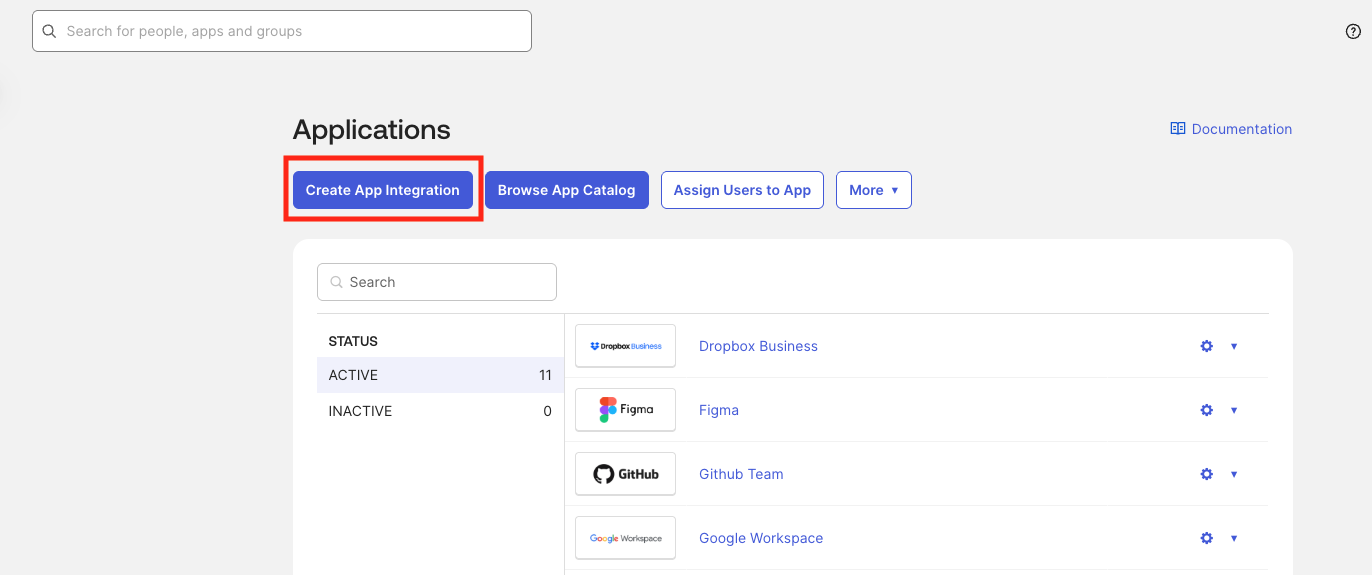
Open Okta Applications
- Log into the Okta admin console.
- Go to Applications > Applications.
- Click Create App Integration.
2
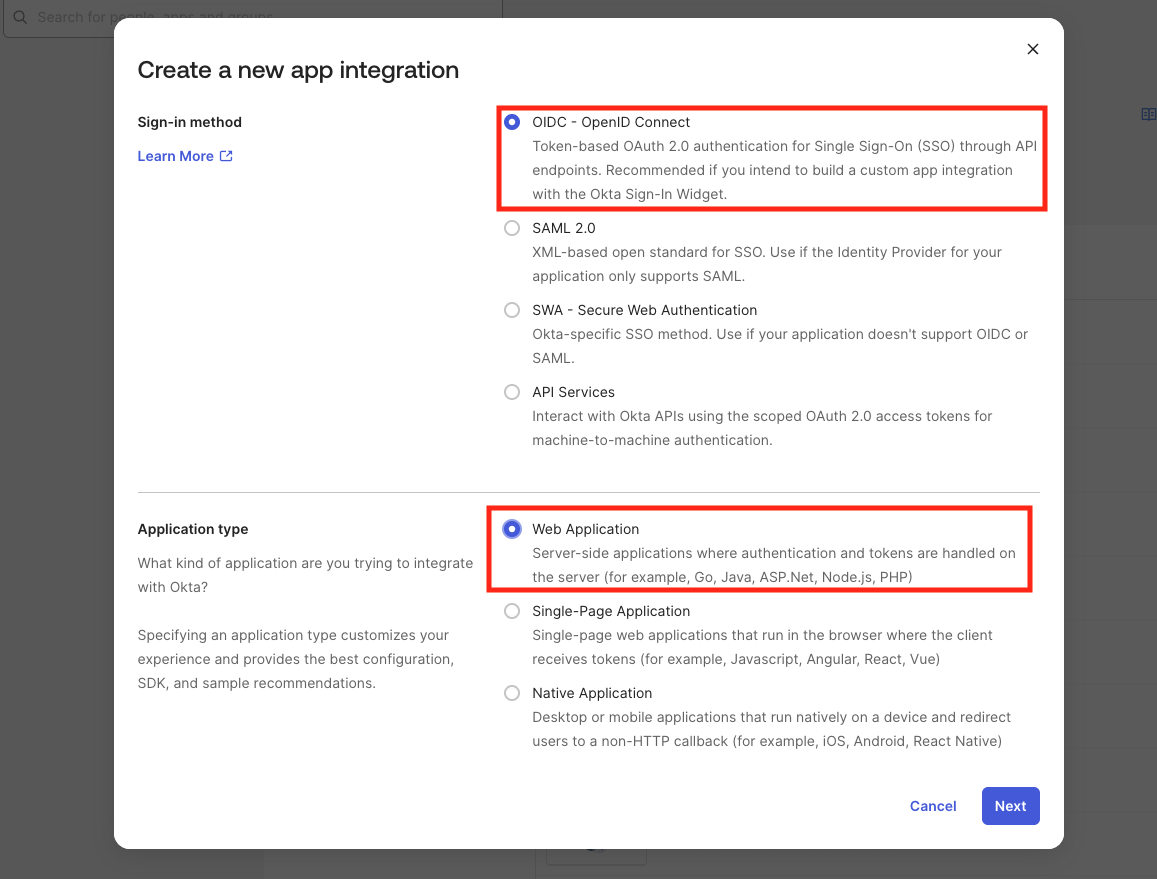
Choose OIDC Web Application
- Select OIDC - OpenID Connect.
- Choose Web Application.
- Click Next.
3
Set general settings
- App integration name: Use something clear like “June SSO”.
4
Configure redirect URIs
- In Sign-in redirect URIs, enter
https://auth.juneops.com/oauth2/idpresponse. - Leave Sign-out redirect URIs empty (optional).
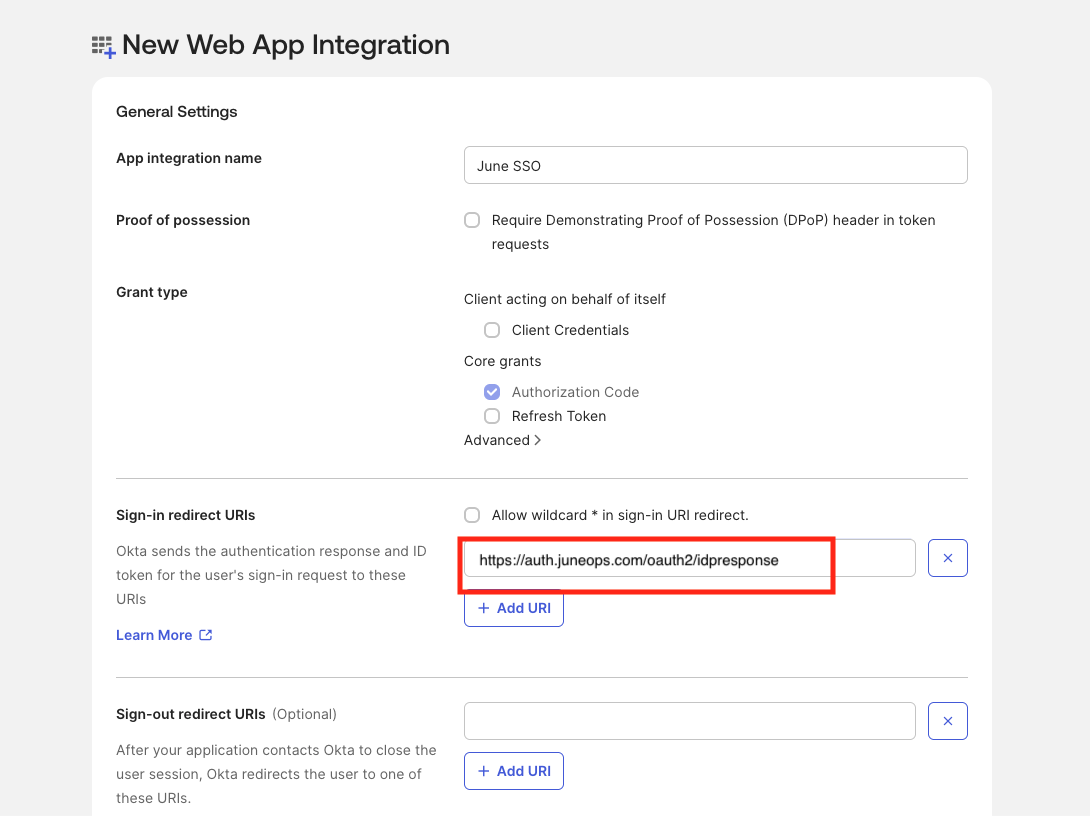
The redirect URI must match exactly
https://auth.juneops.com for SSO to
succeed.5
Set assignments
Choose who can use June through Okta: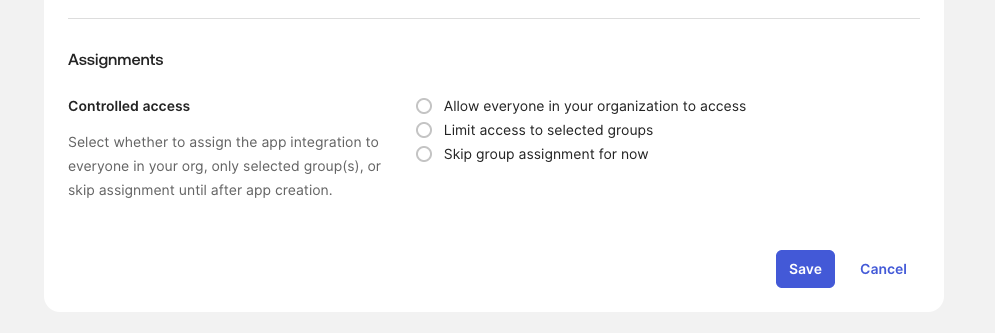
- Allow everyone in your organization.
- Limit to selected groups for a safer pilot.
- Skip now and assign later.
6
Save and capture credentials
- Click Save to create the app.
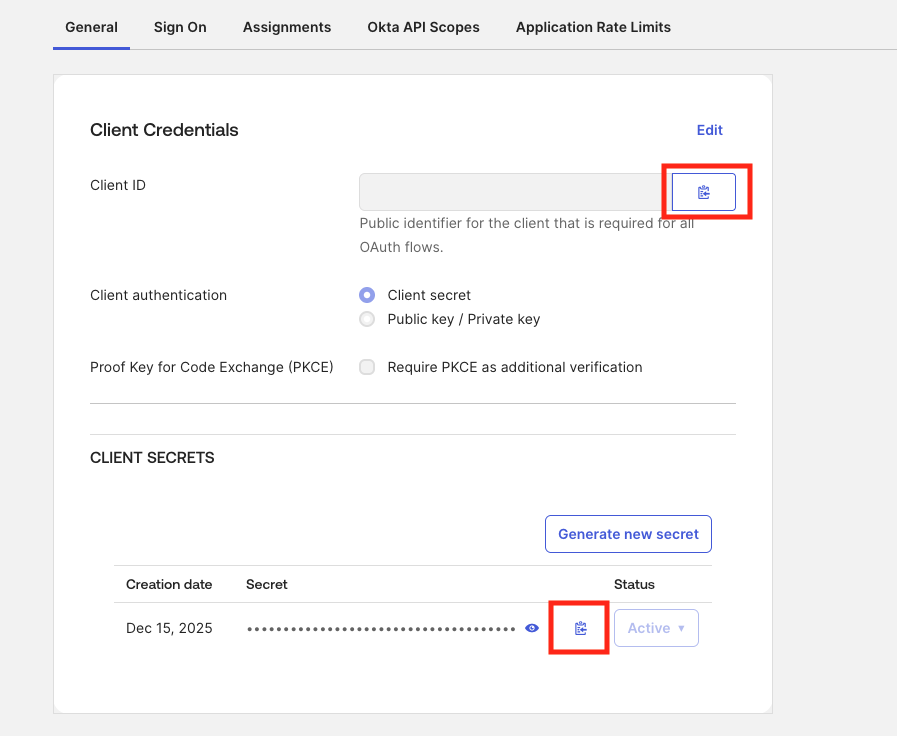
- On the General tab, find Client Credentials.
- Copy the Client ID.
- Copy the Client Secret (click to reveal before copying).
Step 2: Select your authorization server in Okta
1
Open Authorization Servers
- In Okta admin, go to Security > API > Authorization Servers.

2
Choose the server for June
- Use the default authorization server or a custom server you maintain for June.
- Ensure any required scopes are enabled on this server.
3
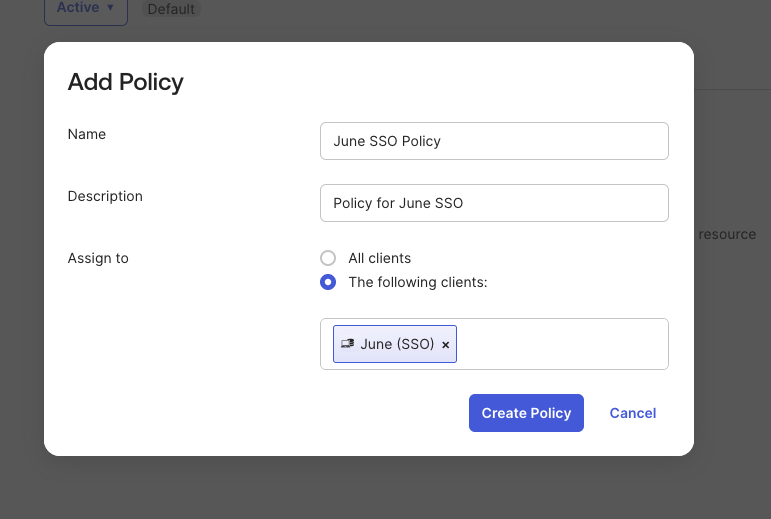
Add an access policy
- With the server selected, open the Access Policies tab.
- Click Add New Access Policy and configure it for June. Create the policy before adding any policy rules.
4
Add a policy rule
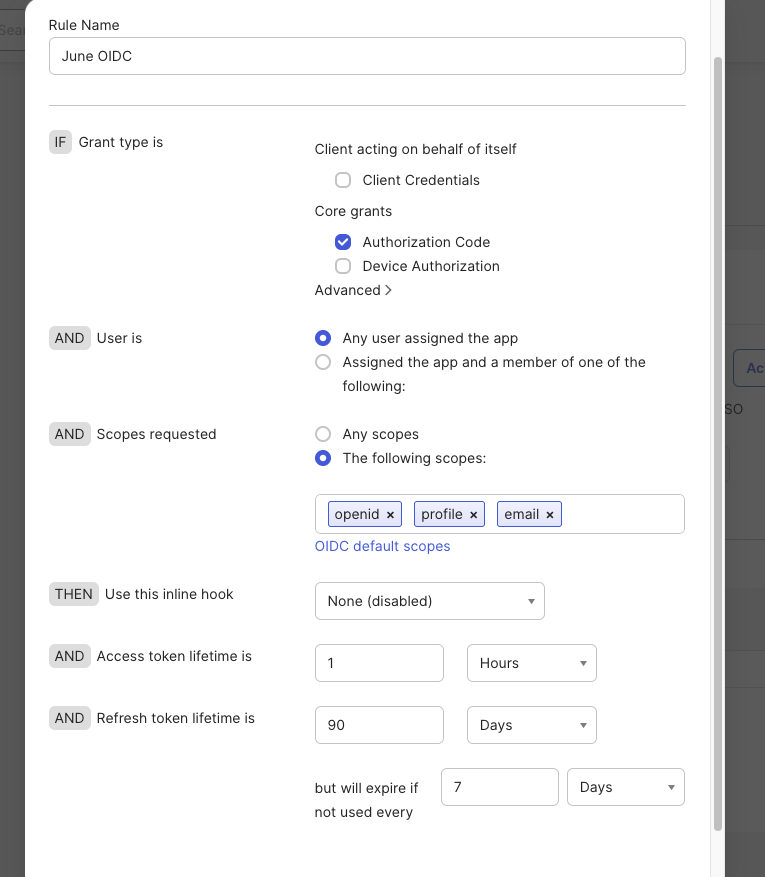
- Open the policy you just created and click Add Rule.
- Required Grant type: Authorization Code.
- Required scopes: openid, profile, email.
- Everything else can stay at defaults unless you have specific requirements.
5
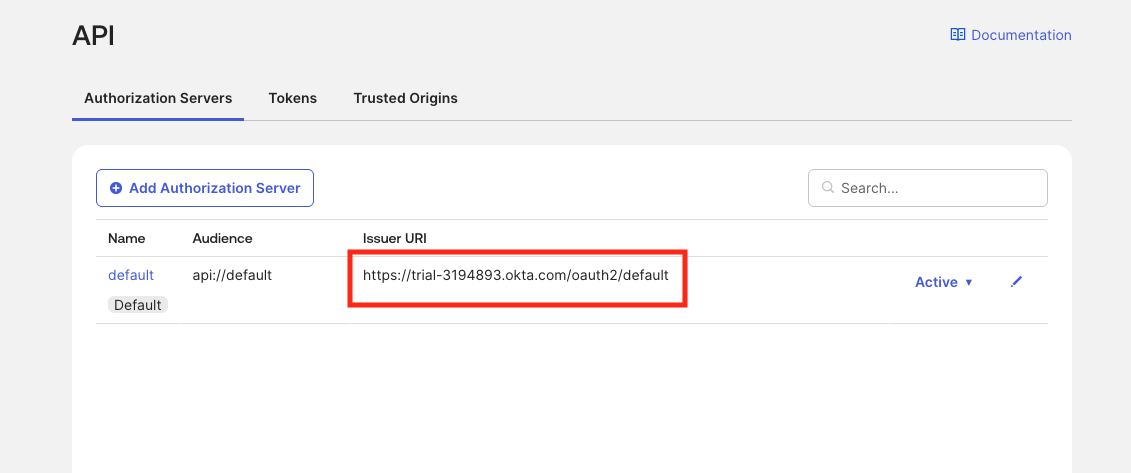
Copy the Issuer URI
- Open the server and go to Settings.
- Copy the Issuer URI exactly as shown (keep the full path).
- You will paste this into June in the next section.
Step 3: Configure SSO in June
1
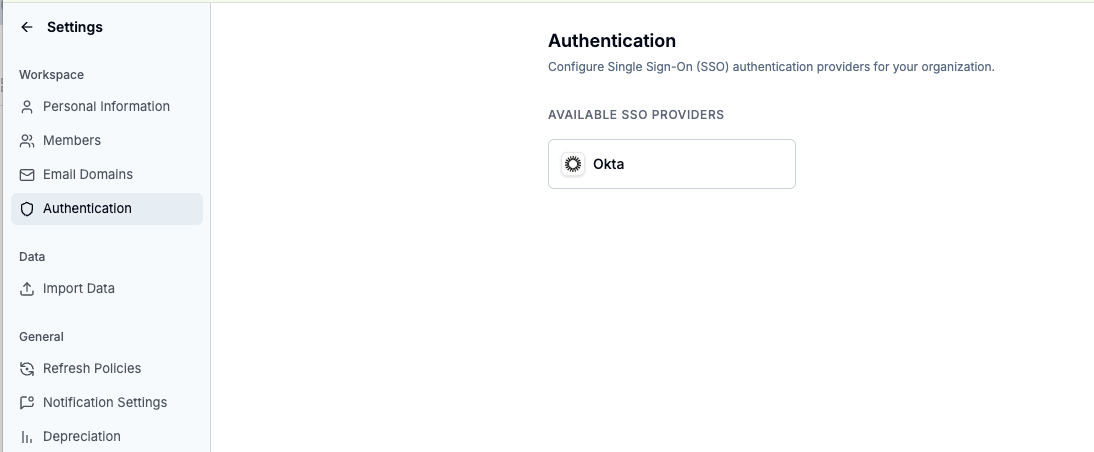
Open Authentication settings
- Sign into the June dashboard.
- Go to Settings.
- Select Authentication.
- Choose Okta under Available SSO Providers.
2
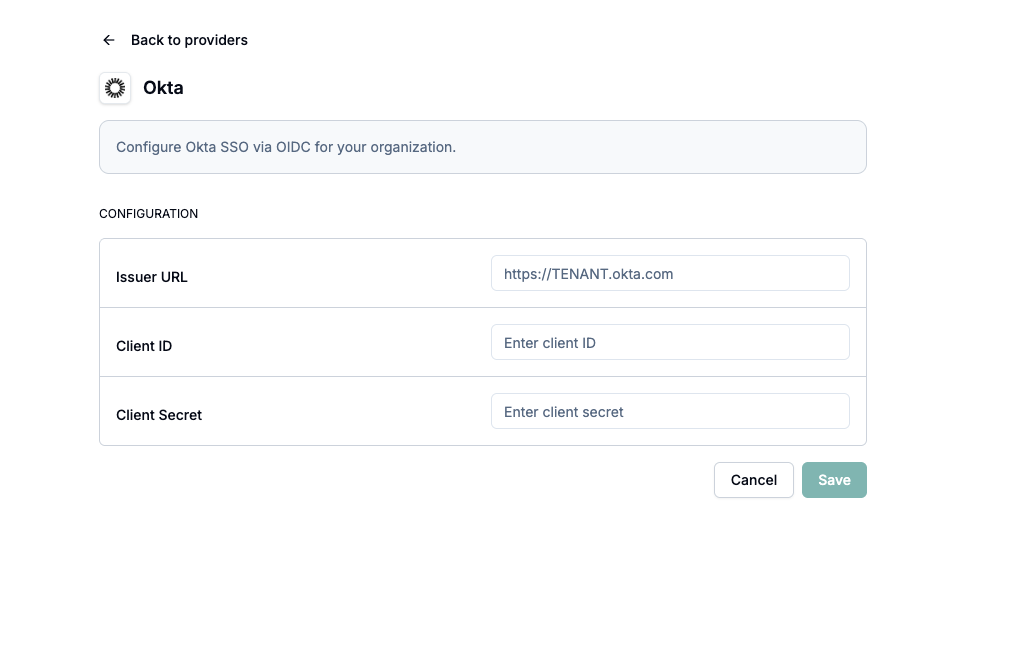
Enter Okta details
- Issuer URL: Paste the Issuer you copied from your chosen authorization server (Security > API > Authorization Servers).
- Client ID: Paste the value from Okta.
- Client Secret: Paste the secret from Okta.
3
Save and verify
- Click Save in June.
After you save, Okta SSO can take a few minutes to finish initializing. Users
may briefly see a login error during this window—wait a couple of minutes and
try again.
Authentication flow
- User enters their email on June and clicks Continue.
- June redirects the user to Okta for sign-in.
- After successful Okta authentication, the user is returned and logged into June automatically.
If the user already has an active Okta session, the redirect back to June
completes without prompting for credentials.
User management
First-time SSO users
- June creates the account automatically.
- Profile data (name, email) comes from Okta.
Existing June users
- Existing accounts are linked by matching email.
- Users are logged out and must sign in with Okta; prior login methods are no longer valid.
- Permissions and data remain intact.
Support resources
- Email June Support: support@juneops.com
- Okta reference: OIDC Web App Guide
Once SSO is configured, your users get a seamless, secure login experience,
and you get centralized identity management with stronger security controls.